


A new laptop takes a few days to click. Keys sit in unfamiliar spots, and ChromeOS drops one that Windows and Mac users lean on constantly. There is no Delete key.
That single gap makes clearing photos feel harder than it is. Below is how to delete images on Chromebook, where those files land afterwards, and why the option sometimes refuses to respond.
Is It Safe to Delete Images on Chromebook?
Yes, and the whole job takes seconds. Images stored in local folders move to Trash when cleared, and ChromeOS empties that folder on its own after 30 days.
Files sitting on an SD card or USB stick behave differently. Those vanish the moment you confirm, with no recovery path. Check each photo before you agree.
Anything you might want later belongs in the cloud first. This walkthrough on moving local files into Google Drive covers the upload in a few clicks.
Which Key Deletes Images on Chromebook
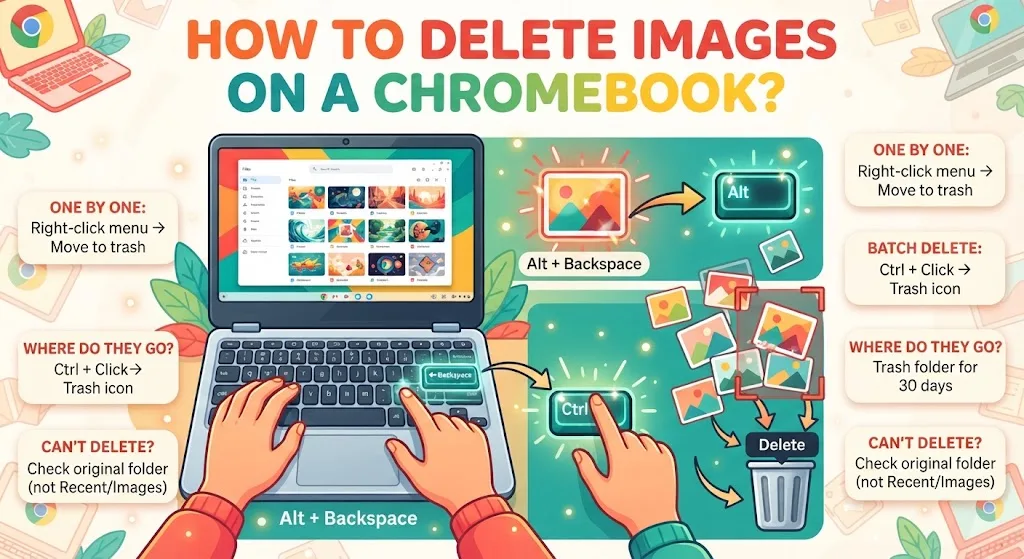
The keyboard carries no key marked Delete. Two keys cover the job together instead. Hold Alt, tap Backspace, and the highlighted file drops out of the folder.
The shortcut behaves the same everywhere in the Files app, whether one photo is selected or forty. Our guide on the missing Delete key on ChromeOS explains the swap in more depth.
| Goal | Keys to press |
|---|---|
| Clear a highlighted photo | Alt + Backspace |
| Mark several photos together | Ctrl held while clicking each thumbnail |
| Rename instead of remove | Ctrl + Enter |
How to Delete Images on Chromebook One at a Time
Click a thumbnail once so it highlights. Right-click that same thumbnail, or tap it with two fingers on the trackpad.
A short menu appears. Pick Move to trash, and ChromeOS clears that image alone. Nothing else in the folder shifts position.
Struggling to find the folder itself? Our walkthrough on opening stored files through the Files app shows where downloads and camera shots land by default.
How to Delete Multiple Images on Chromebook at Once
Say a backup already sits elsewhere and the drive now needs emptying. Working through hundreds of photos one by one burns an afternoon, and a few always slip through.
Grab the whole pile in one sweep instead. Press Ctrl, keep holding it, and click every unwanted photo as you scroll. Each stays highlighted until the group is complete.
Then click the trash icon at the top right of the Files window. The batch clears in one action. The same trick applies when you are clearing old downloads off ChromeOS.
| Method | Best suited for | Where to click |
|---|---|---|
| Right-click menu | One photo alone | The pop-up list |
| Ctrl, click, then trash icon | Dozens of photos | Top right of the window |
Why You Cannot Delete Images on Chromebook in Certain Folders
Open the folder that originally received the file, then clear the photo from there. Recent and Images are shortcut views holding pointers, not the files themselves.
That is why the removal option greys out in those two places and ignores your clicks. Return to the real folder and the option wakes up again.
Downloaded files sometimes carry viewing restrictions on top of that. Our page on switching off read-only mode in ChromeOS explains the Properties fix.
| Folder you opened | Does removal work? |
|---|---|
| Downloads or another folder you saved into | Yes |
| Recent | No, greyed out |
| Images | No, greyed out |
Where Deleted Images Go on a Chromebook
Trash sits in the left panel of the Files app. Select a file there and click Restore from trash to pull it back within the 30-day window.
Click Empty trash now to wipe everything early. Screen captures follow the same rules, since ChromeOS drops them straight into Downloads. Our guide on capturing your Chromebook screen covers where each one saves.
Photos are rarely the only thing filling a small drive. Pulling out apps you no longer open frees more space, and a full ChromeOS reset clears local storage completely when nothing else helps.
FAQs
How do I delete photos from my Chromebook?
Open the Files app, go to the folder holding the photo, select it, then press Alt + Backspace or right-click and choose Move to trash. The image leaves that folder straight away.
Why can’t I delete photos on my Chromebook?
Recent and Images show shortcuts rather than real files, so the delete option greys out. Open the original folder, usually Downloads, and the option works again.
Where do deleted photos go on a Chromebook?
Local photos sit in Trash inside the Files app for 30 days, then clear permanently. Photos on a USB drive or SD card skip Trash and go immediately.
How do I delete multiple images on Chromebook at once?
Hold Ctrl and click each photo you want gone, then click the trash icon at the top right of the Files window. Every selected image clears in one action.
Does deleting images on Chromebook remove them from Google Photos?
No. Removing a local copy leaves cloud copies untouched. Files synced to Google Photos or Google Drive stay there until you delete them inside those services.
