


You can find a saved Wi-Fi password on your Chromebook if you forget it or need to share it with someone. The process requires enabling Developer Mode, which gives you access to system files where network credentials are stored.
Chrome OS does not make this simple. Most devices show saved Wi-Fi passwords in settings, but Chromebooks hide this information behind Developer Mode.
Developer Mode unlocks more system features. It also comes with risks. Enabling it erases all data on your device. Google does not provide support for issues that happen in Developer Mode.
Most users should avoid Developer Mode unless absolutely necessary. If you want to proceed, follow the steps below to access your saved network passwords.
How To Find Wifi Password On Chromebook?
Finding a Wi-Fi password on a Chromebook requires accessing the Chrome Shell and running specific commands. You need Developer Mode enabled before you start.
If you have not enabled Developer Mode yet, visit our complete guide on activating Developer Mode. Make sure you back up all important files before proceeding.
Open Chrome Shell
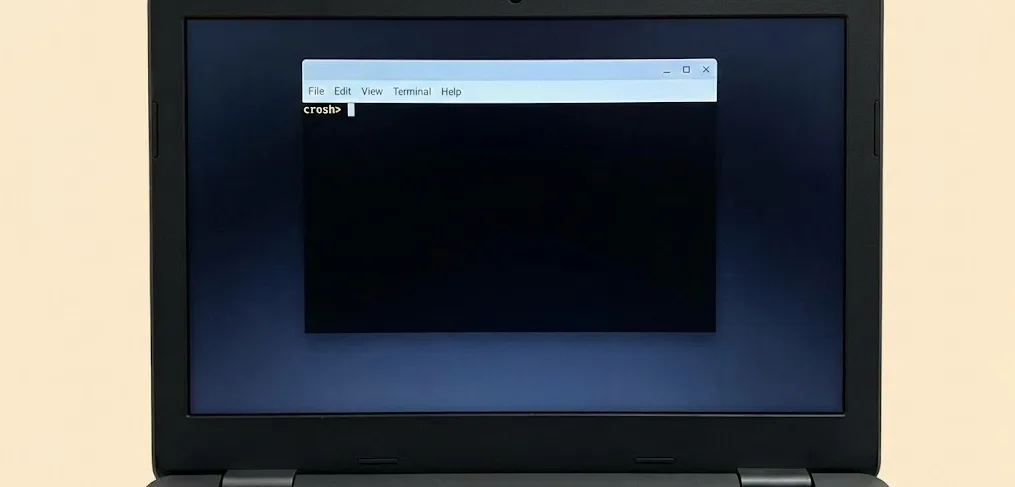
Press Ctrl + Alt + T on your keyboard. This opens Crosh, the Chrome Shell terminal.
The terminal window appears with a command prompt. You can now enter commands to access system files.
Enter Shell Mode
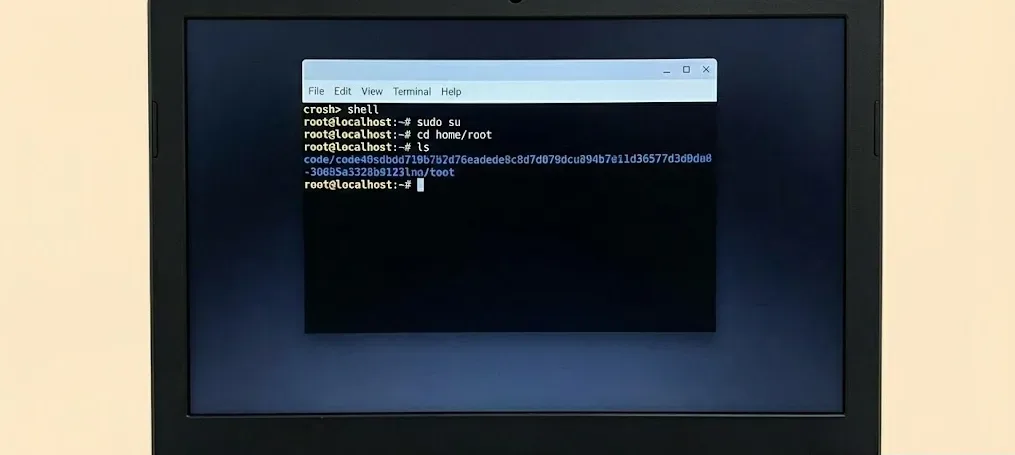
Type shell and press Enter. This command switches you from Crosh to a full shell environment with expanded access.
Type sudo su and press Enter. This gives you root privileges to access protected system directories.
Navigate to Network Configuration Directory
Type cd home/root and press Enter. This takes you to the root directory where network profiles are stored.
Type ls and press Enter. A long code string appears on your screen. Copy this entire string.
Access Network Profile
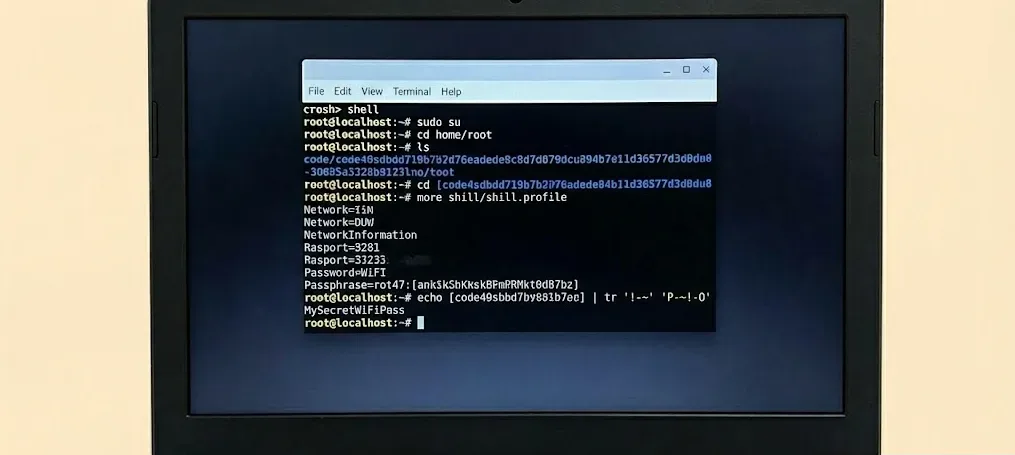
Type cd, paste the copied code string, and press Enter. This navigates to the specific directory containing your network configuration.
Type more shill/shill.profile and press Enter. A list of network information displays on your screen.
Locate Encrypted Password
Find the line that contains Passphrase=rot47:. The text after this label is your encrypted Wi-Fi password.
Copy only the random text following Passphrase=rot47:. This is the encrypted version of your actual password.
Decrypt the Password
Type this command, replacing “yourtext” with the copied encrypted password: echo yourtext | tr '!-~' 'P-~!-O'
Press Enter. Your Wi-Fi password appears in plain text on the screen.
Alternative Methods
This method is complicated for viewing a simple password. Android phones offer easier ways to check saved Wi-Fi passwords through their settings menu.
You can also use Chrome browser’s sync internals to find saved passwords without enabling Developer Mode. If you experience connection issues, check our guide on fixing Chromebook Wi-Fi problems.
FAQs
Does Chrome OS save Wi-Fi passwords automatically?
Chrome OS saves Wi-Fi passwords automatically when you connect to a network. These passwords sync across your Google account but are not visible in standard settings.
Can I find Wi-Fi passwords without Developer Mode?
You can use Chrome browser’s sync internals page to find encrypted passwords. This method avoids Developer Mode but requires decryption tools to view the actual password.
Will enabling Developer Mode delete my files?
Enabling Developer Mode performs a factory reset that erases all local files. Back up your data to Google Drive before activating Developer Mode on your Chromebook.
Is Developer Mode safe to use on Chromebooks?
Developer Mode disables security features and voids support from Google. Use it only if you understand the risks and need advanced system access for specific tasks.
Can I share Wi-Fi passwords from my Chromebook?
Chrome OS does not offer a built-in password sharing feature like Android or iOS. You need to manually retrieve and share the password using the methods described above.
