


Chrome OS does not show Wi-Fi passwords in standard settings. Unlike Windows or macOS, Chromebooks hide this information, which makes it harder to retrieve a forgotten network password.
Google Chrome stores Wi-Fi details in an encrypted format. You can access them through the browser’s sync internals page without enabling Developer Mode.
This approach works for most users who need to see wifi password on Chromebook without Developer Mode. It skips the risks that come with enabling Developer Mode, such as a factory reset and a voided warranty.
How To See Wifi Password On Chromebook Without Developer Mode?
Step 1: Open Chrome Sync Internals
Open Google Chrome on your Chromebook. Type chrome://sync-internals in the address bar and press Enter.
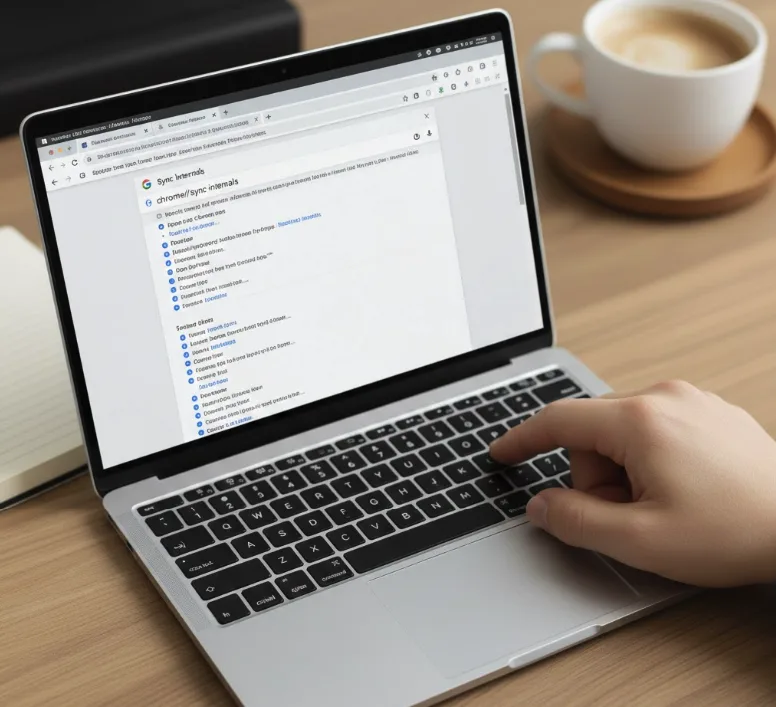
Step 2: Search for Wi-Fi Entries
Click the Search tab at the top of the page. Type wifi in the search field and press Enter.
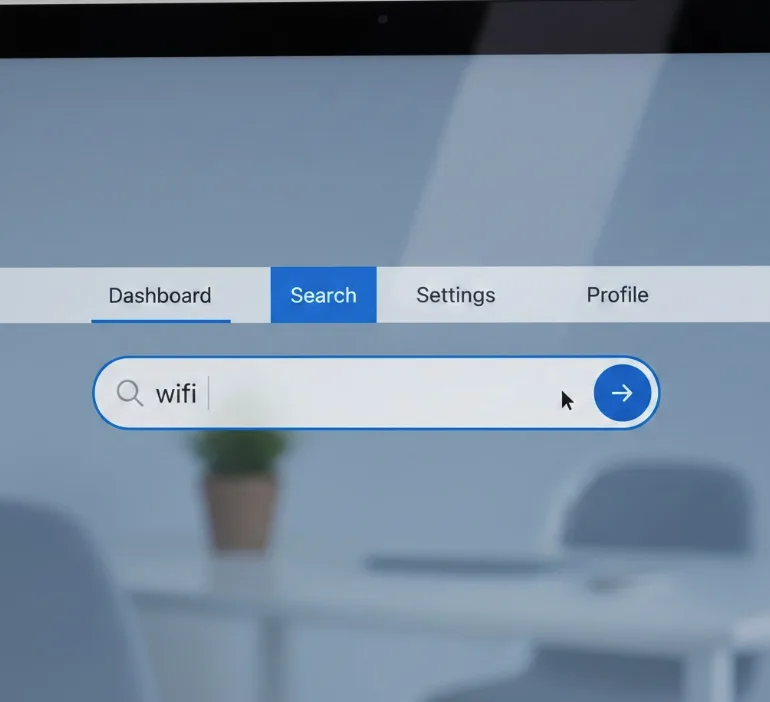
Step 3: Identify Your Network
Look through the results for entries ending in psk. These represent saved Wi-Fi networks.
The characters before psk are the encrypted network name (SSID). You will need to decode this to confirm which network each entry belongs to.
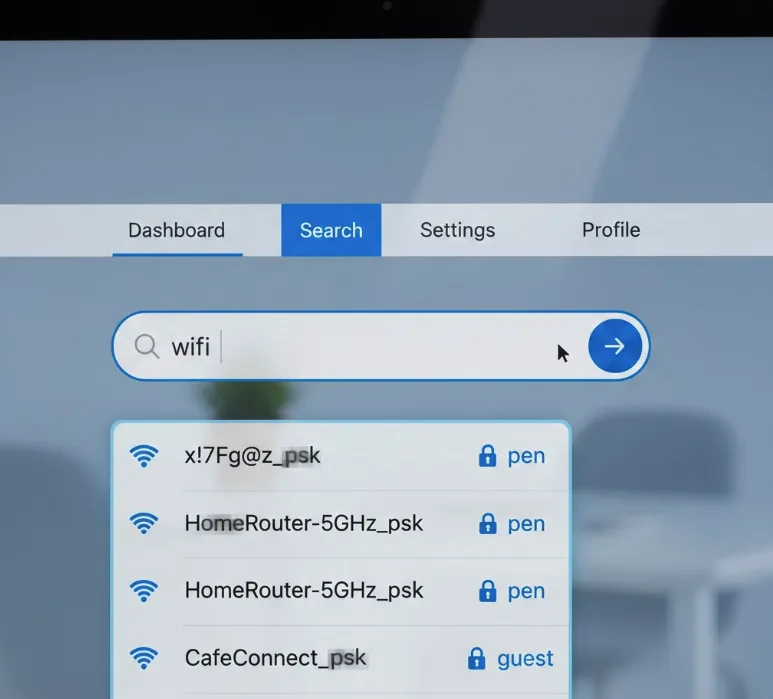
Step 4: Decode the Network Name
Copy the encrypted SSID from the NAME row of any entry. Paste it into a hex decoder tool such as Base64 or JavaInUse to reveal the readable network name.
Step 5: Copy the Encrypted Password
Return to the Sync Internals page. Find the passphrase row within the same entry and copy the text next to it.
Step 6: Decode the Password
Paste the passphrase text into the same hex decoder tool. The decoded result is your Wi-Fi password.
This method works without touching Developer Mode. If you want to search for other saved credentials on your device, you can also check how to search for saved passwords on a Chromebook for another approach.
If you run into connection trouble after using your retrieved password, the guide on fixing Chromebook Wi-Fi problems covers the most common causes and fixes.
FAQs
Can you see a Wi-Fi password on a Chromebook without Developer Mode?
Yes. Use chrome://sync-internals in the Chrome browser, search for your network under the wifi filter, then decode the passphrase entry using a free hex decoder tool online.
Does enabling Developer Mode erase my Chromebook?
Yes. Enabling Developer Mode performs a factory reset and removes all local files. Back up your data to Google Drive before proceeding.
Why does Chrome OS hide Wi-Fi passwords?
Chrome OS stores Wi-Fi passwords in an encrypted format for security. Google does not expose them through standard settings, unlike Windows or macOS, which display them more directly.
Can I find a Wi-Fi password using an Android app on Chromebook?
Yes, some Android apps can reveal saved Wi-Fi passwords. This works as an alternative if the sync internals method does not return usable results on your device.
Is the sync internals method safe to use?
Yes. The method only reads data Chrome has already stored. It does not modify system files or disable any security features on your Chromebook.
