


Important WhatsApp chats disappear after accidental deletion, an app crash, or a failed backup. These situations often feel like permanent deletion, but recovery is possible as long as the requirements are met. Hence, this guide explains how messages are deleted or recovered from backups.
Given the details and WhatsApp limits, the article will explain why Android data recovery software is a better option.
Among these options, learn why Dr.Fone – Data Recovery (Android) offers one of the fastest and most versatile ways to recover WhatsApp data.
Part 1. How Android’s WhatsApp Backup System Works
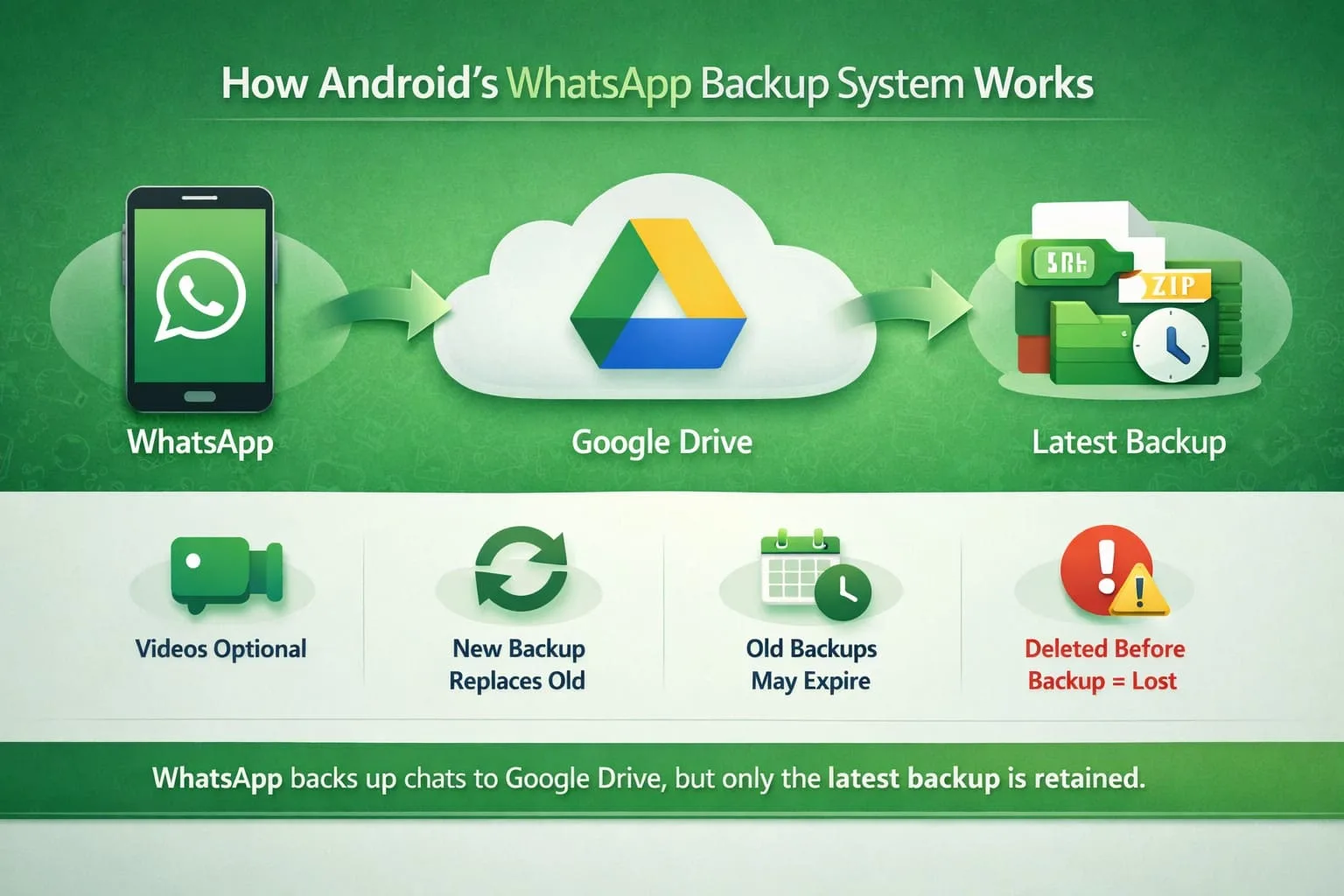
Android’s WhatsApp backup system relies on integration with the Google Drive account to save a snapshot of your data.
However, it is not always reliable and cannot capture everything. Large videos are skipped unless the “Include Videos” option is enabled. Additionally, Google Drive keeps the latest backup for each phone, so every backup replaces the old one.
Any backup that hasn’t been updated in 5 months will be automatically deleted by Google, as stated by WhatsApp. Moreover, if messages are deleted before a new backup is created, they may not be included in future backups.
To create a backup, your phone needs a stable internet connection. If the process is interrupted, the backup may not be completed successfully.
Part 2. Is Deleted Message Recovery Actually Possible?
As you are clear about the basics, you might wonder, “How do you retrieve deleted WhatsApp messages on Android?”
Note that when a message is deleted, it is not immediately removed from the phone’s storage. WhatsApp only removes them from its database and marks the storage space as available. The actual text, images, or video remains on the device until new data overwrites it.
Hence, the chances of recovery depend on the time and phone activity. WhatsApp creates a local backup every night at 2:00 AM and retains it for up to 7 days.
If the message was deleted recently, you may be able to restore it from one of these local backups. To improve your chances of recovery, stop using the phone as soon as you notice the message has been deleted.
Note: Without a backup, only the recovery software can perform a read-only scan of the phone’s storage. However, the chances of recovery decrease as new data replaces the old files.
Part 3. Comparing Recovery Methods That Actually Work
If you want to know what recovery option to choose between a recovery software Android app, local, or Google Drive backup, this section has you sorted. Compare all these 3 options in the given table and know which one to choose and why:
| Method | Requires Prior Backup? | What It Recovers | Speed | Effectiveness |
| Google Drive Restore | Yes, a backup must have existed before the messages were deleted. | Full chat history from the selected backup, excluding newer messages. | Moderate: Requires reinstalling WhatsApp and restoring the backup. | Effective only when a recent backup is available. |
| Local WhatsApp Databases | Yes, requires an existing local backup file on the device. | Chats are stored in an available local backup created before deletion. | Fast when a suitable backup is available. | Limited by backup availability and overwrite. |
| Dr.Fone – Android Data Recovery Software | No, can recover data with or without an available backup. | WhatsApp chats, media, documents, and other supported data types. | Fast, guided scan with preview in a few simple steps. | Reliable for recovering supported WhatsApp data in various loss scenarios. |
Part 4. Restoring Messages with Dr.Fone – Android Data Recovery
Unlike Google Drive or local backup, Dr.Fone Android data recovery software is by far the most suitable choice to recover WhatsApp messages.
It can selectively retrieve messages with the read-only scan, even from Google Drive, and supports backups. The scan is free, saves the new data from being overwritten, and takes less than 10 minutes.
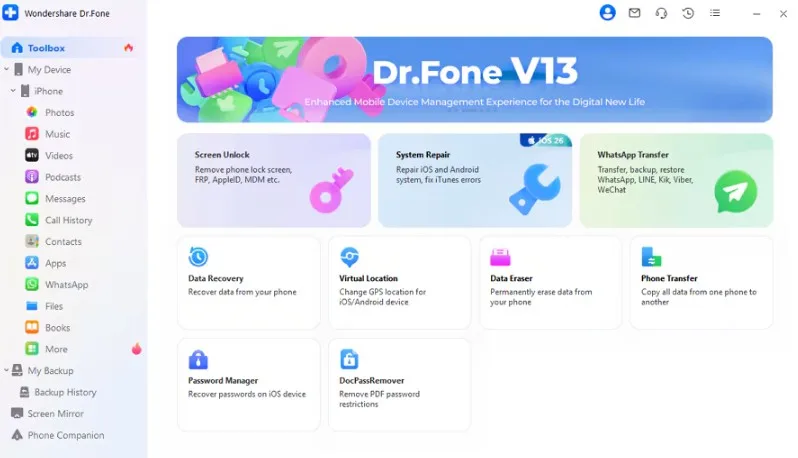
With its intuitive interface, the recovery process can be performed in 3 simple steps, and users get 100% thumbnail previews.
Users can also use it to recover WhatsApp Business data and View Once data, as it’s one of the exceptional features of Dr.Fone. You can also get WhatsApp messages back even without the backup, and the process needs no learning curve.
Key Features
- Selective Recovery: Preview recoverable data and restore only the WhatsApp messages and files you need instead of recovering everything.
- Recover Social App Data: Recover data from WhatsApp, WhatsApp Business, LINE, Kik, Viber, and other supported social messaging apps.
- Recover From Broken Devices: Recover WhatsApp data from supported Android devices with broken or unresponsive screens, depending on the device’s condition.
Dr.Fone Guide: How to Recover WhatsApp Data from an Android Device
If you wonder “how do you retrieve deleted WhatsApp messages on Android?”, here is the detailed Dr.Fone guide you need to follow:
Step 1. Tap to Recover WhatsApp Data
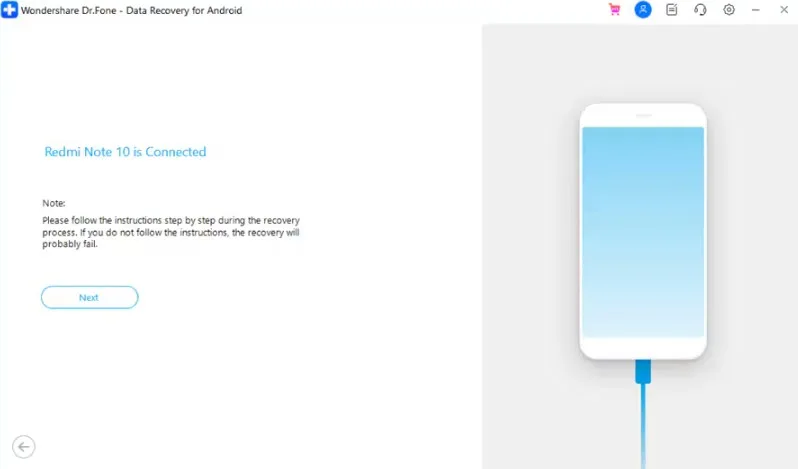
Open the “Recover WhatsApp Data” feature in Dr.Fone – Data Recovery (Android), connect your device, and click “Next.”
Step 2. Backup and Restore WhatsApp on Dr.Fone
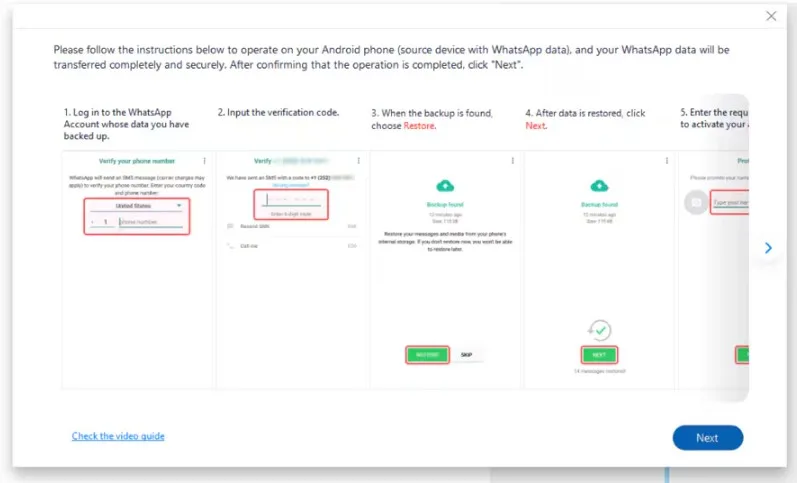
Follow the guide to back up, then wait until WhatsApp is uninstalled and reinstalled automatically on Android. Choose the “Next” button and follow the on-screen instructions to restore the backup and pick “Next.”
Step 3. Recover WhatsApp Data After Preview
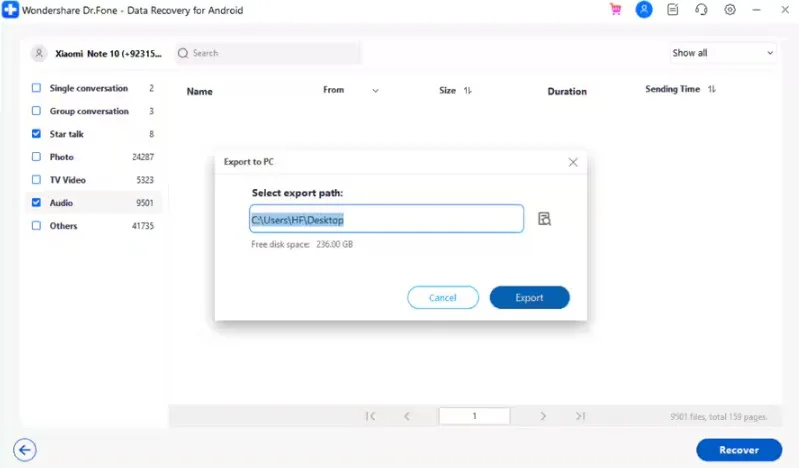
Select the message types you want to recover and pick the export location to “Export.”
Part 5. Messages Recovered — Now Protect Them Going Forward
Once the WhatsApp messages are recovered via the Dr.Fone recovery software Android app, follow the tips given below to keep them secure:
| Tip/Habit | What It Prevents | How to Set It Up |
| Schedule Regular Google Drive Backups | Keeps a recent backup available if messages are accidentally deleted. | WhatsApp Settings > Chats > Chat Backup > Choose a backup frequency. |
| Avoid Uninstalling WhatsApp Unnecessarily | Reduces the risk of losing chats that are not backed up. | Only uninstall after confirming a recent backup is available. |
| Export Critical Conversations | Creates a separate copy of important chats for future access. | Chat > More > Export Chat, then save it to your device or cloud storage. |
| Check Backup Status Before Major Changes | Helps avoid losing recent chats during resets or phone upgrades. | Settings > Chats > Chat Backup, then verify the Last Backup date. |
| Keep a Recovery Tool Ready | Improves your chances of recovering deleted WhatsApp data. | Install Dr.Fone – Data Recovery (Android) in advance so it is ready when needed. |
Conclusion
WhatsApp messages are rarely gone for good and can be recovered under certain conditions. While Google Drive and local storage provide ways, they fall short in terms of overwrite and restore requirements.
Therefore, it’s best to use Dr.Fone Android data recovery software to retrieve WhatsApp and other 14+ data types with a read-only scan.
