


Chrome can turn speech from almost any tab into on-screen text. Clips, podcasts, games, streams and calls all count. It can also pass that text to Google for translation.
Here is how to turn off Live Caption, or bring it back, as of September 2026. Audio and captions get processed on your device. Chrome saves nothing and sends nothing out.
How to Turn Off Live Caption in Chrome on Each System
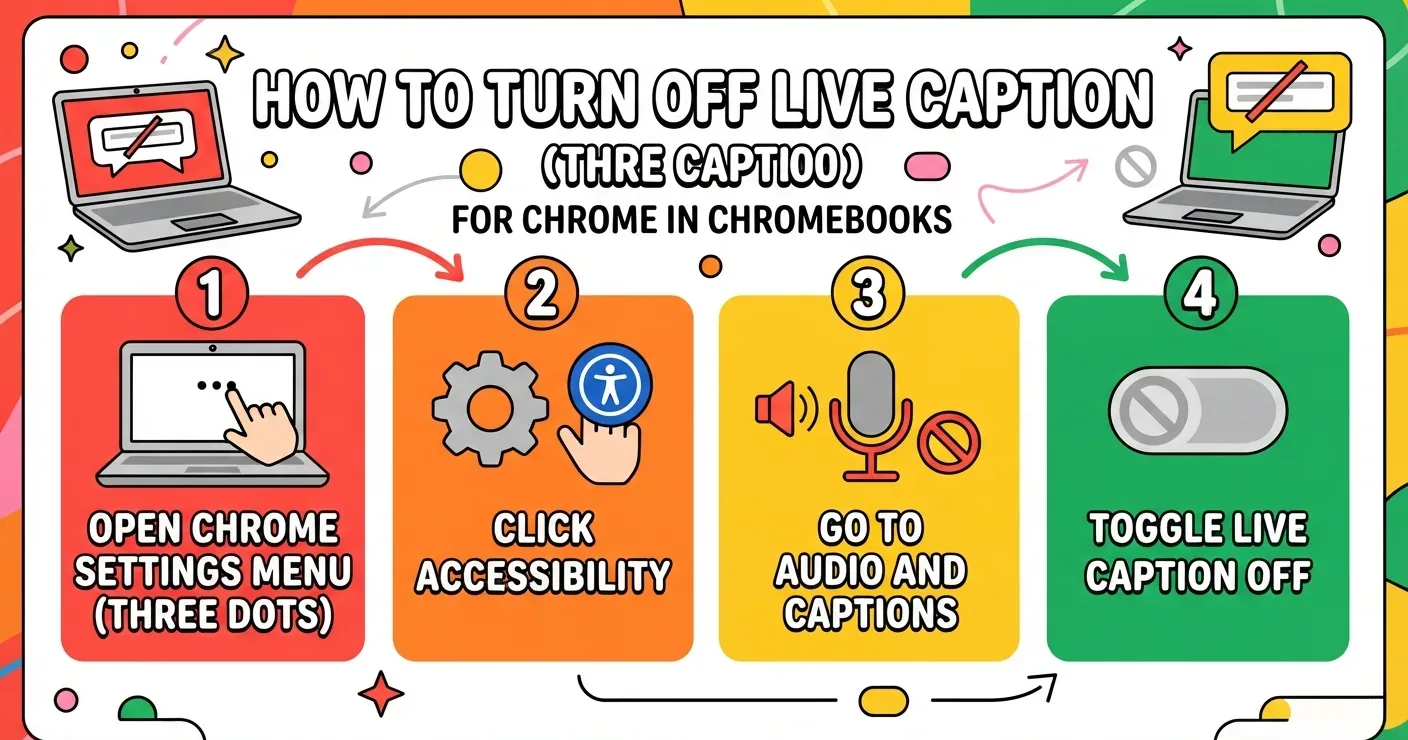
Open Chrome and click the three-dot menu at the top right. Pick Settings, then Accessibility. What you click next depends on the system you run.
Windows and macOS
The Live Caption toggle sits right on the Accessibility page. Switch it off. No extra menus.
Linux
Click Captions first. The Live Caption toggle appears there. Switch it off.
Chromebook
Choose Manage accessibility features, then Audio and captions. Flip Live Caption off. That makes the Chromebook path the longest of the three.
Changing the Live Caption Language
Want captions in a language other than English? On Windows, macOS or Linux, click Add languages next to Manage languages. Chrome downloads the language pack for you.
Then open the dropdown beside Preferred caption language and pick one. ChromeOS users can also switch the system language on a Chromebook in a few clicks.
How to Use Live Caption on Any Video Before Turning It Off
A Media control icon sits at the top right of Chrome. Use it to get captions on every clip.
Clips that autoplay need sound, so unmute them first. Text appears in a small floating box that you can drag anywhere. Back to tab takes you straight to the page making noise.
Only need a break for one video? Click the X on the caption box. Live Caption stays on for everything else.
How to Turn On Live Translate on a Chromebook Plus
Live Translate on a Chromebook Plus accepts speech in 19 languages. It can produce text in more than 100, picked from the “Translate captions to” list.
Spoken Languages Live Translate Accepts
Danish, Dutch, English, French, German, Hindi, Indonesian, Italian, Japanese, Korean, Norwegian, Polish, Portuguese, Simplified Chinese, Spanish, Swedish, Thai, Traditional Chinese and Turkish.
Setting Up Live Translate Step by Step
- Open the Settings app.
- In the left panel, choose Accessibility, then Audio and captions.
- Turn on Live Caption.
- Under “Supported Live Caption languages,” add every language you plan to caption. Captions and translations both pull from this list. For Spanish into English, Spanish has to be here.
- Set your default to the language you hear most. Live Caption starts there. With nothing chosen, it falls back on the others listed.
- Turn on Live Translate.
- In “Translate captions to,” pick your output. For English text, choose English and keep the spoken language on the supported list.
Output beyond English? Use the dropdown next to “Translate captions to.” It pulls more power, so keep the charger plugged in.
If runtime already feels short, this breakdown of why a Chromebook battery drains fast covers the usual causes.
How to Turn Off Live Caption Without Losing Live Translate
Switching captions off and back on does not reset Live Translate. It stays active the whole time. You have two routes for turning Live Caption on again.
From the Settings App
Open Settings, go to Accessibility, then Audio and captions. Flip Live Caption back on.
From Quick Settings
Click the clock at the bottom right. Tap Live Caption in the panel. This is the faster option once you know where it lives.
Using translation for long stretches? A few habits from this guide on keeping a Chromebook battery healthy can help.
How to Turn On Live Translate in Chrome for Windows, Mac and Linux
Open the three-dot menu, go to Settings, and pick Accessibility. On Linux, click Captions as well. Switch on Live Translate.
For results in a language other than English, use the dropdown beside “Translate to.”
Where Live Translate Shows Up in the Caption Box
When captions run, Live Translate appears inside their box on its own. Click Translating to open caption settings.
Live Translate still off? Click the language being spoken. If you use Media control while captions run, turn on Live Translate first and then pick one language.
How to Change Live Caption Styling Before You Turn It Off
Sometimes the captions are fine and the box is the problem. You can adjust it before deciding to switch the whole feature off.
- Click the arrow on the box to shrink or enlarge it.
- Click the text and drag it anywhere inside your window.
- Pick a different typeface, text size or colour.
Other ChromeOS tools handle reading and hearing too. Our walkthrough on text to speech on a Chromebook covers Select-to-speak.
If voice typing keeps firing by accident, see disabling dictation on ChromeOS. Mixed-language typists may also want to change the keyboard language.
FAQs
Why does Live Caption keep popping up in Chrome?
Live Caption was likely switched on in Settings or through the Media control menu. Turn off the toggle under Settings, then Accessibility, and the caption box stops appearing on every tab.
How do I close the Live Caption box for one video?
Click the X at the top right of the caption box. Captions vanish for that playback, while Live Caption stays enabled for other tabs and videos.
Does Chrome Live Caption work offline?
Yes. Chrome processes Live Caption on your device after it downloads speech files. Live Translate is different, because it sends caption text to Google to translate it.
What does Reddit suggest when Live Caption won’t stay off?
Before trying Reddit workarounds, switch Live Caption off under Settings, then Accessibility. If captions return, a Chrome Help Community fix sets chrome://flags/#enable-accessibility-live-caption to Disabled. Relaunch Chrome afterward.
Are Reddit claims that Live Caption records audio true?
No. Live Caption handles audio and text on your device, and Chrome does not save or send it. Only Live Translate passes caption text to Google.
