


Getting Microsoft Office 365 running on your Chromebook is simpler than you might think. While Chromebooks don’t support traditional Windows software, you can access the full suite of Office apps through Progressive Web Apps.
This method gives you Word, Excel, PowerPoint, Outlook, and OneDrive directly on your device. You’ll get offline access, taskbar pinning, and push notifications without installing heavy desktop software.
The setup takes just a few minutes and works with both free and paid Office 365 accounts.
How To Set Up Microsoft Office 365 On Chromebook?
You can access Office 365 on your Chromebook using Progressive Web Apps, which combine web functionality with native app features. Here’s how to get started.
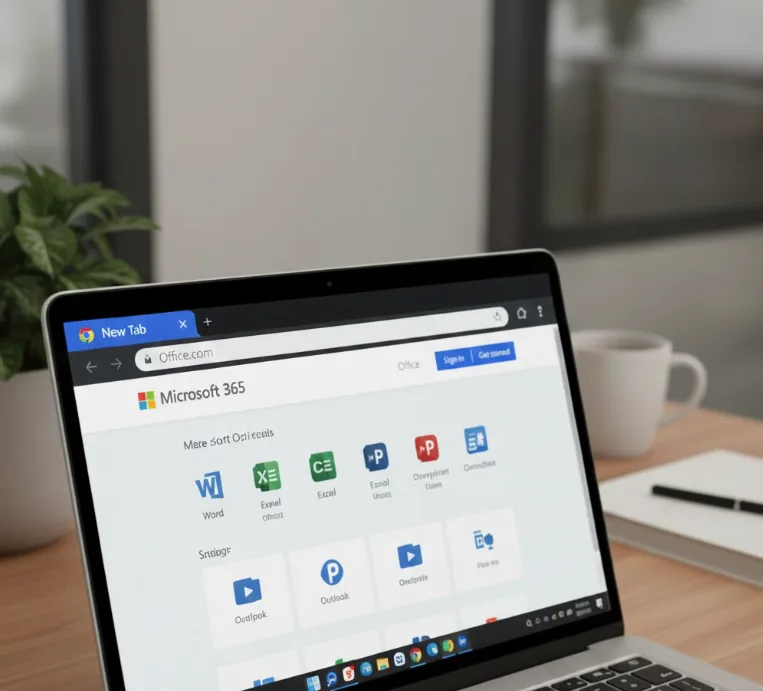
Open Chrome and Navigate to Office.com
Launch the Chrome browser on your Chromebook. Type Office.com into the address bar and press Enter.
This takes you to the Microsoft Office 365 homepage where you’ll access all available apps.
Sign Into Your Office 365 Account
Log in with your existing Office 365 credentials. Enter your email address and password when prompted.
If you don’t have an account, create one using any personal email address. You’ll need to verify your email and complete a quick security check.
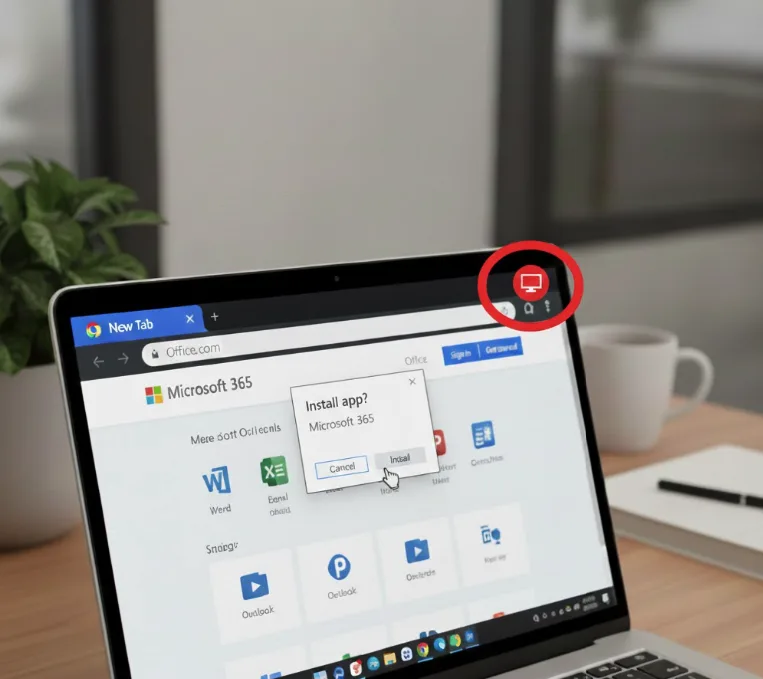
Locate the Install Icon
After logging in, look for the Install icon in the top right corner of your browser. The icon looks like a computer monitor with a downward arrow.
This icon appears automatically once you’re signed into Office 365.
Install the Office 365 PWA
Click the Install icon. A prompt will appear asking you to confirm the installation.
Click Install again to proceed. The process takes just a few seconds.
Install Individual Office Apps
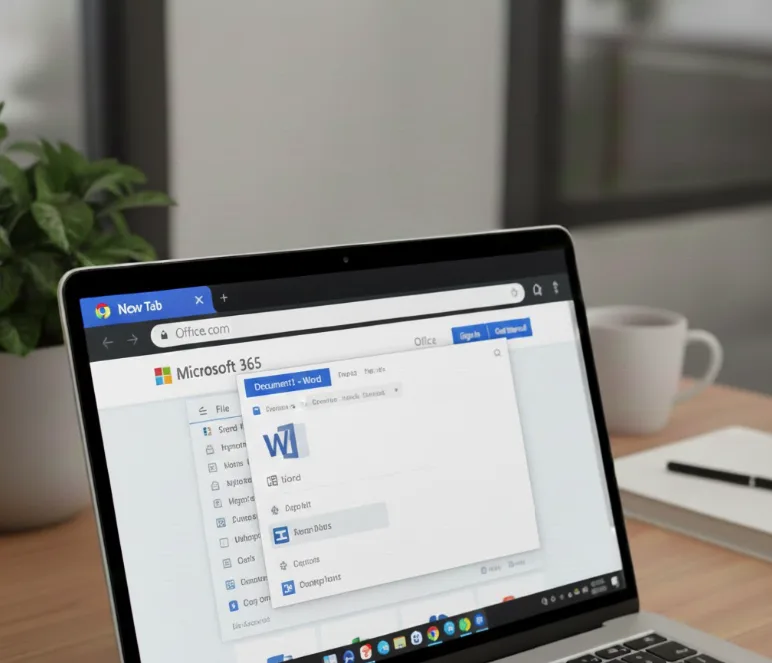
To install specific apps like Word or Outlook, navigate to that app’s page within Office 365. The Install icon will appear again in the browser.
Click it to add that individual app to your Chromebook. You can repeat this for each app you need.
Access Your Installed Apps
Find your newly installed Office apps in your app launcher or taskbar. Click any app to open it.
The apps function like standard applications but run through your browser. You can pin them to your taskbar for quick access.
Work Offline and Sync Your Files
The PWAs support offline work, so you can edit documents without an internet connection. Your changes sync automatically to OneDrive when you reconnect.
All your files remain accessible across devices through cloud storage.
The Office 365 PWAs deliver a full-featured experience on Chromebooks. You get real-time collaboration, cloud storage integration, and all essential productivity tools without traditional software installation.
FAQs
Do I need a paid Office 365 subscription for my Chromebook?
No, you can use Office 365 web apps for free with basic features. A paid subscription unlocks advanced capabilities and offline editing for all apps.
Can I use Office 365 on my Chromebook without internet?
Yes, the Progressive Web Apps support offline work. You’ll need an initial internet connection to install the apps and sign in first.
Are Office 365 PWAs as good as desktop versions?
The PWAs offer most desktop features including real-time collaboration and cloud storage. Some advanced functions may be limited compared to full desktop software.
Why aren’t Android Office apps working on my Chromebook?
Microsoft discontinued support for Android versions of Office apps on Chromebooks. The company recommends using Progressive Web Apps instead for better performance.
Can I edit all Office file types on my Chromebook?
Yes, you can create and edit Word documents, Excel spreadsheets, PowerPoint presentations, and other Office formats through the web-based PWAs.
