

Close Menu
    Facebook X (Twitter) Instagram
    • About
    • Privacy Policy
    • Write For Us
    • Newsletter
    • Contact
    Instagram
    About ChromebooksAbout Chromebooks
    • Linux
    • News
      • Stats
      • Reviews
    • AI
    • How to
      • DevOps
      • IP Address
    • Apps
    • Business
    • Q&A
      • Opinion
    • Gaming
      • Google Games
    • Blog
    • Podcast
    • Contact
    About ChromebooksAbout Chromebooks
    News

    I love this small change to the ChromeOS clipboard history

    Kevin TofelBy Kevin TofelMarch 23, 2023Updated:August 27, 2025No Comments2 Mins Read

    Did you know that you can view the last five items you’ve saved to the clipboard on your Chromebook? Just use the Launcher + V keyboard shortcut to see them. No, it’s not an intuitive shortcut. And that may be why Google is considering a small change to the ChromeOS clipboard history shortcut based on some recent code I discovered.

    I say this is a small change, because it is. However, I love Google’s plan because it just makes sense.
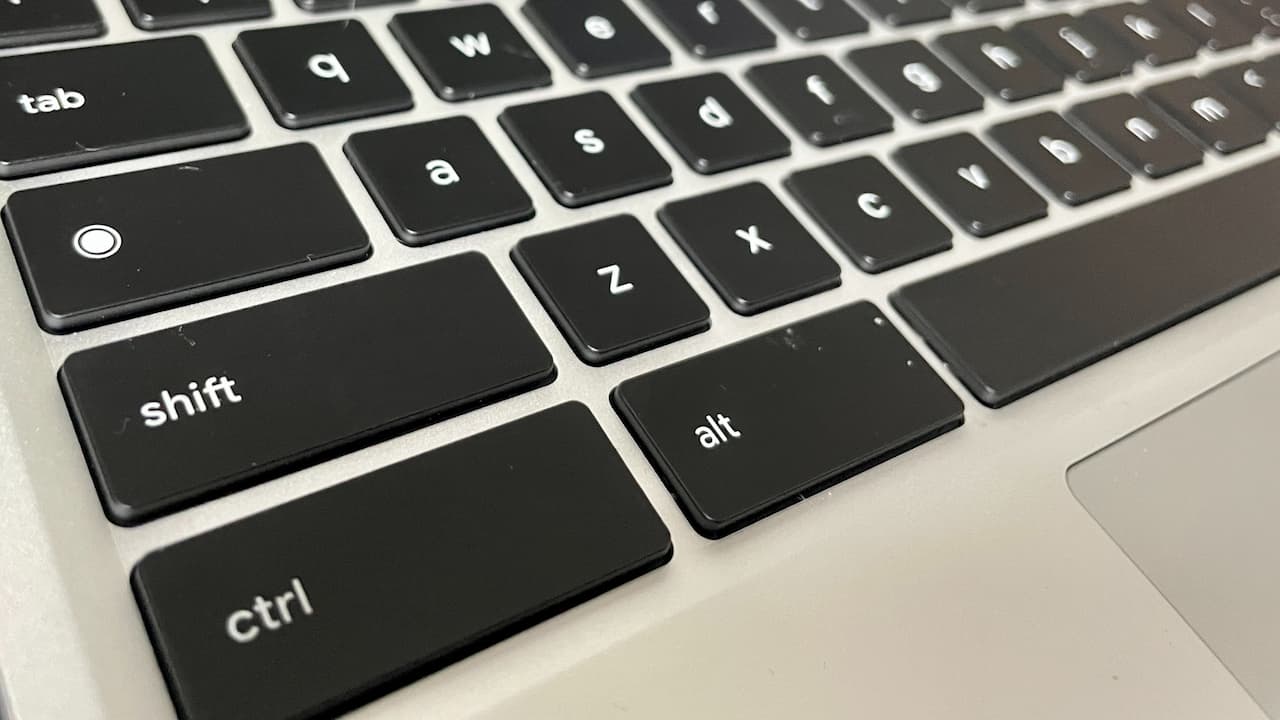
    ChromeOS keyboard shortcuts sometimes use the Launcher key

    What’s the change? Using the standard CTRL + V keyboard shortcut to view the ChromeOS clipboard history.

    Instead of tapping that key combo to paste the most recent item, you’ll be able to long-press it and choose from the last five clipboard items. Yes, please!

    Of course, this being a relatively new code change for ChromeOS, you can’t use it just yet. Well, at least I can’t on the latest Dev Channel. And I don’t typically run the ChromeOS Canary Channel.

    For those that do and want to check for it, hop over to chrome://flags#clipboard-history-longpress and enable the flag. I imagine the flag will appear in the next week or so, unless it’s already appearing in the Canary Channel.

    ChromeOS Clipboard history

    I also like this as a method to replace something you may have already pasted. Imagine a quick CTRL + V to paste one thing but you want to replace the snippet from your ChromeOS Clipboard history. Long pressing brings up the history and choosing a different snippet overwrites the previously pasted info.

    Yes, I know I’m probably too excited by such a small change.

    However, by using the industry standard shortcut, I think this can have a big, positive productivity impact. And think of any newer Chromebook owners that have used other operating systems. How would they even know to use the Chromebook Launcher + V keyboard shortcut to get their ChromeOS Clipboard history?

    Whether you view this as a big or small improvement, it’s still an improvement. Anything that improves the ChromeOS user experience while keeping things simple, is good in my book!

    Kevin Tofel
    • Website

    After spending 15 years in IT at Fortune 100 companies, Kevin turned a hobby into a career and began covering mobile technology in 2003. He writes daily on the industry and has co-hosted the weekly MobileTechRoundup podcast since 2006. His writing has appeared in print (The New York Times, PC Magazine and PC World) and he has been featured on NBC News in Philadelphia.

    Best of AI

    What Does Adobe Firefly AI Do?

    June 16, 2026

    Is Joyland AI Safe For Kids?

    June 12, 2026

    LMArena AI: Chatbot Ranking Platform 2026

    May 27, 2026

    Will AI Take Over the World

    May 25, 2026

    AI21 Jurassic Statistics 2026: Model Size, Usage and AI Performance Trends

    May 19, 2026
    Trending Stats

    Conversational AI Market Statistics 2026: Chatbot Usage And Enterprise Deployment

    June 17, 2026

    Chromebook Gaming Usage Statistics 2026: Player Engagement And Usage Reports

    June 17, 2026

    Chromebook Battery Degradation Statistics 2026: Lifecycle Performance Testing Data

    June 15, 2026

    Chromebook Touchscreen vs Non-Touchscreen Usage Statistics 2026: Device Interaction and Form Factor Data

    June 11, 2026

    Chromebook Performance Across Price Segments Statistics 2026: Benchmark Comparison Data

    June 10, 2026
    • About
    • Tech Guest Post
    • Contact
    • Privacy Policy
    • Sitemap
    © 2026 About Chrome Books. All rights reserved.

    Type above and press Enter to search. Press Esc to cancel.