


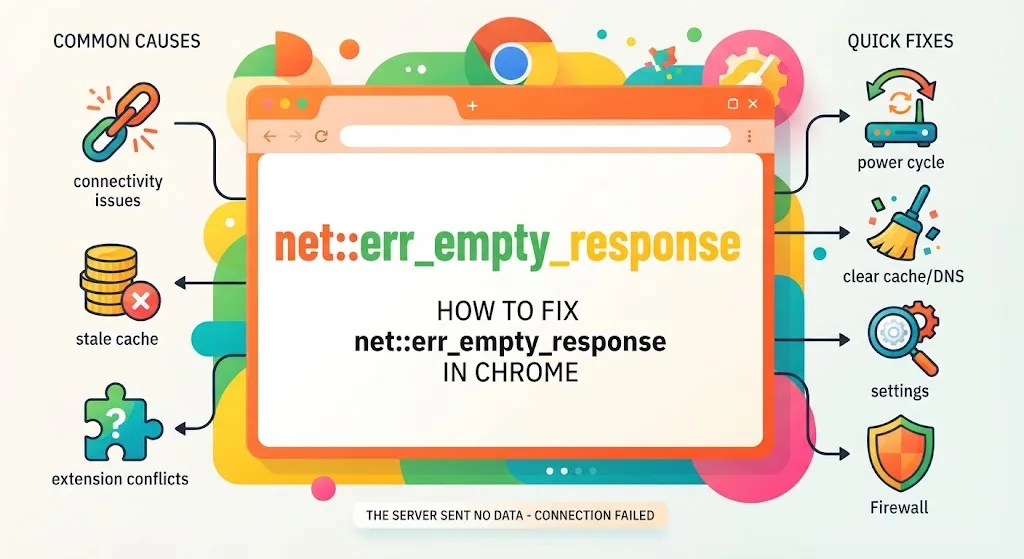
net::err_empty_response turns up now and then in Chrome, and the wording gives you almost nothing to work with. The browser asked a server for a page and got silence back.
That silence traces back to your router, your cache, an extension, or the site itself. Below are ten fixes, ordered from quickest to most involved.
What net::err_empty_response Means in Chrome
The message means Chrome sent a request and received no data in reply. The server stayed quiet, so you land on a blank page with a short warning.
People mix this up with an HTTP status code. The two are not the same. Status codes are standard replies a server sends after a request. net::err_empty_response gets written by the browser, and Chrome is where you will meet it most.
What Causes the net::err_empty_response Error
A broken link between browser and server accounts for most cases. It is a broad error, though, and the root sits in different places depending on the setup.
- Dropped or unsteady network access
- Stale or damaged browsing data
- An extension clashing with the page
- An outdated Chrome build
- A firewall or antivirus blocking the request
- Corrupted DNS records on your machine
- Wrong DNS server values
- A misconfigured host
How to Fix net::err_empty_response: 10 Solutions
Work down the list in order. Skipping ahead to DNS edits wastes time when the fault sits one step earlier.
Test Your Internet Connection
A weak signal stops data from reaching Chrome. Power cycle the router and give it a minute to settle.
On wireless, sit nearer to it, hop onto mobile data, or plug in an Ethernet cable. A device that refuses to join the wireless network needs a different set of steps first.
Renew Your IP Address
Network values fall out of order and bring up the warning. Asking for a fresh IP address puts them right.
Windows
- Type
cmdin the Windows menu. - Launch Command Prompt with admin rights.
- Run
ipconfig /release, thenipconfig /renew, thenipconfig /flushdns, pressing Enter after each.
Mac
- Open System Settings from the Dock and pick Network.
- Hit Details beside the live network.
- Go to TCP/IP and choose Renew DHCP Lease.
Clear Browsing Data in Chrome
Chrome keeps page data so return visits load quicker. That store goes stale or breaks.
Open the three-dot menu, pick Delete Browsing Data, then tick Cached images and files along with Cookies and other site data. Corrupted cache also sits behind the Aw, Snap! crash message.
Open the Page in Incognito Mode
An incognito window keeps no history and loads with extensions switched off.
Open the three-dot menu, choose New Incognito Window, then load the site. If it opens fine, blame an add-on or your stored files.
Disable Chrome Extensions
Extensions widen what Chrome can do, and some break the connection to certain pages.
In a normal window, open the three-dot menu, pick Extensions, then Manage Extensions. Turn them off one at a time until the page loads. Extension conflicts also produce STATUS_ACCESS_VIOLATION on Chromebooks, so the same test applies there.
Update Google Chrome
Old builds miss support for the protocols modern pages rely on.
Open the three-dot menu, select Help, then About Google Chrome. Updates land on their own, but a manual button appears when one is waiting.
Check Your Firewall and Antivirus
Security software can be too strict and shut out a safe page outright.
Switch it off for a moment to check, then turn it back on so the machine stays guarded. Add the site to your allow list instead of leaving protection down. The same overreach triggers SSL handshake failures on secure sites.
Flush the DNS Cache
The DNS cache speeds up domain lookups. Like the browser cache, it gathers records that no longer match reality.
Chrome keeps its own copy separate from the system one. Clearing the host cache through chrome://net-internals/#dns takes seconds and clears net::err_empty_response often enough to be worth trying early.
Change Your DNS Servers
The servers handed over by your provider lag or stall. Google’s public pair, 8.8.8.8 and 8.8.4.4, is the usual swap.
Windows
- Go to Control Panel, then Network and Internet, then Network and Sharing Center.
- Click your network under View your active networks and press Properties.
- Pick Internet Protocol Version 4 (TCP/IPv4) and press Properties again.
- Choose Use the following DNS server addresses and fill both fields.
Mac
- Open System Settings, then Network, then Details beside the live network.
- Open the DNS tab and press + under DNS Servers.
- Type the address and press OK.
Contact the Website Owner
If nothing on your side works, the fault sits with the host. Write to whoever runs the page and describe what you see.
Your note may flag a live outage quietly costing them visits and revenue. Server-side faults also surface as a 500 internal server error, while a page that stalls without ever resolving points at result_code_hung instead.
Fixing net::err_empty_response Without Guesswork
net::err_empty_response means Chrome received nothing back from the server. Connectivity causes most cases, which is why the network checks come first.
An error that follows you across every site and browser is a network fault. One that hits a single page is the host’s problem. Timeouts under a different label, such as err_timed_out, respond to the same sequence of steps.
FAQs
What does net::err_empty_response mean?
It means Chrome sent a request to a website and received no data back. The server closed the connection without replying, leaving a blank page and a short browser warning.
Is net::err_empty_response a server problem or mine?
Both are possible. If the error appears on one site only, the server is the likely cause. If it appears everywhere, the fault sits with your network, cache, or DNS settings.
Does incognito mode fix net::err_empty_response?
Incognito mode does not fix it, but it isolates the cause. Extensions stay off and cached files stay unused, so a page that loads there points to one of those two.
How do I flush the DNS cache in Chrome?
Type chrome://net-internals/#dns in the address bar and click Clear host cache. For a full reset, also run ipconfig /flushdns on Windows or renew the DHCP lease on Mac.
Why does net::err_empty_response appear on only one website?
That pattern points to the site’s server, not your device. Its host may be dropping connections, hitting resource limits, or running a misconfiguration that stops responses from being sent.
