


Google introduced a Memory Saver feature for Chrome and ChromeOS last year. A new supplemental function shows Chrome browser tab memory usage when you hover over any tab.
This feature helps you identify memory-intensive tabs quickly. You can see exactly how much RAM each tab consumes without opening the Task Manager or other tools.
The function is experimental and not available by default. You need to enable it through Chrome flags first.
This works on Chromebooks, Windows, macOS, and Linux. The process is identical across all platforms running the Chrome browser.
How to hover and view Chrome browser tab memory usage?
Before you can hover and view Chrome browser tab memory usage, you need to enable Memory Saver. This step is required for the hover feature to work properly.
Enable Memory Saver in Chrome settings
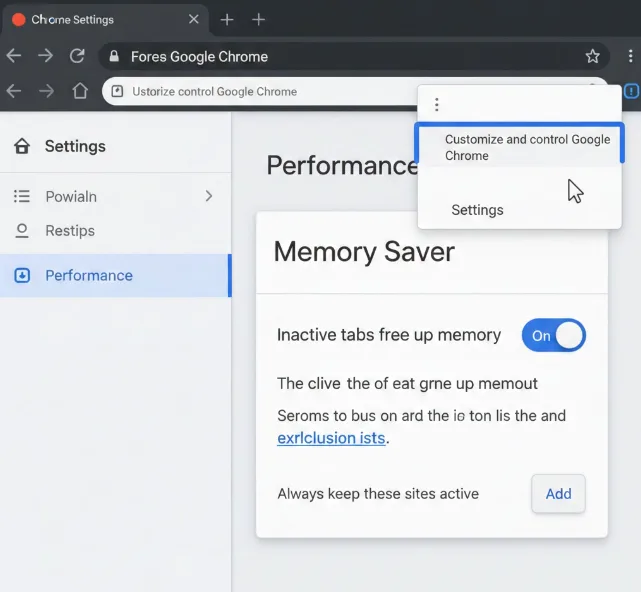
Open your Chrome browser and click the three-dot menu near the top right corner. Select Settings from the dropdown menu.
Click the Performance option in the left sidebar. Flip the switch next to Memory Saver to turn it on.
This feature helps free up memory from inactive tabs automatically. You can add sites to an exclusion list if needed.
Navigate to the experimental flags page
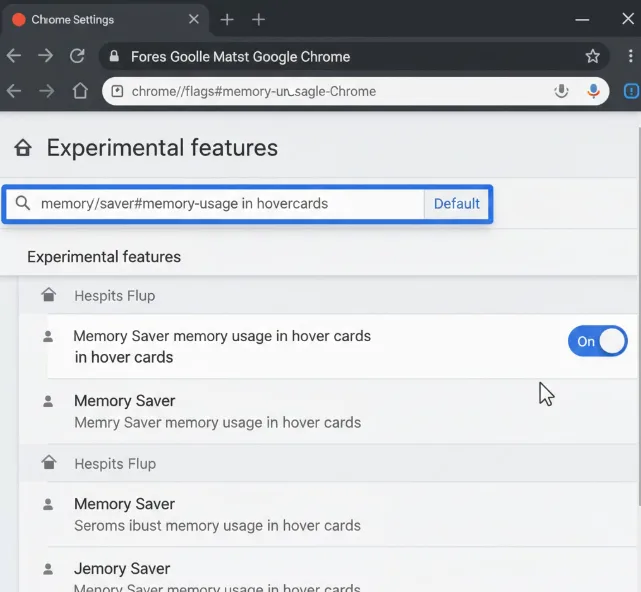
Type chrome://flags#memory-saver-memory-usage-in-hovercards in your address bar. Press Enter to reach the flag settings.
If you use Lacros as your primary browser on ChromeOS, look for this flag in os://flags instead. The setting appears in the same format.
Enable the memory usage hovercard flag
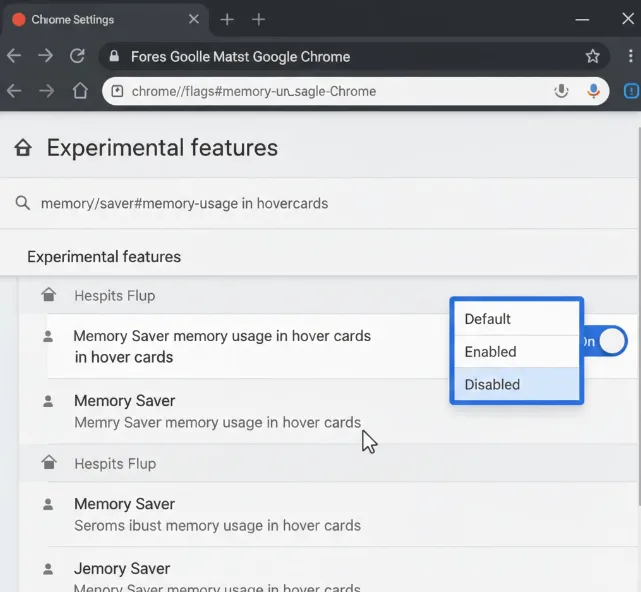
Find the dropdown menu next to “Memory Saver memory usage in hover cards.” Change the selection from Default to Enabled.
A blue Restart button appears at the bottom of your browser window. Click it to apply the changes.
Test the hover feature on your tabs
Your Chrome browser closes and reopens automatically. Wait for it to fully reload before testing.
Hover your mouse over any Chrome browser tab. The memory usage displays alongside the tab preview.
Each tab shows its current RAM consumption in megabytes or gigabytes. This information updates in real time as tabs use more or less memory.
Monitor tab memory usage regularly
Background tabs can consume significant memory over time. Some tabs use 2 GB or more if left running.
The old method required opening the ChromeOS Task Manager to view memory used per tab. That interface showed all running processes mixed together.
This hover feature is faster. You can identify memory-hungry tabs instantly without leaving your current workspace.
Understanding Chrome tab behavior helps you manage resources better. Users average 11.4 tabs simultaneously.
Chromebooks with limited memory benefit most. Devices with 4 GB of RAM need careful tab management to maintain performance.
Remember that Chrome extensions hurt performance by consuming memory even when inactive. Disable unnecessary extensions to free up RAM.
FAQs
Does this feature work on all Chromebooks?
Yes, the feature works on all Chromebooks running recent Chrome versions. You need to manually enable it through chrome://flags since it’s experimental. Older Chrome versions may not support this flag.
Will enabling this flag slow down my browser?
No, enabling this flag does not impact browser performance. It only displays existing memory data when you hover over tabs. The feature uses minimal system resources to show this information.
Can I disable the hover memory display later?
Yes, return to chrome://flags and change the setting back to Default. Restart your browser to disable the feature. You can toggle it on and off whenever needed without issues.
Does this work with Chrome tab previews enabled?
Yes, the memory usage displays alongside tab previews when both features are active. You see the preview image and memory consumption simultaneously. The information does not conflict with existing preview features.
What memory usage level indicates a problem tab?
Tabs using over 500 MB deserve attention, especially on 4 GB systems. Tabs exceeding 1 GB significantly impact performance. Close or reload these tabs to free memory for other tasks.
