


Bookmarks let you save your favorite websites in Safari for quick access later. Instead of typing a URL each time, you can open saved pages directly from your bookmarks menu.
This guide shows you how to bookmark websites on your iPhone using Safari. The process takes just a few taps and helps you organize the sites you visit most often.
Whether you’re saving articles, shopping sites, or work resources, bookmarks keep everything in one convenient place.
How to Add a Bookmark on iPhone?
Bookmarking a website in Safari stores it in your browser for easy retrieval. You can access bookmarks anytime without searching or remembering URLs.
Follow these steps to save a webpage as a bookmark on your iPhone.
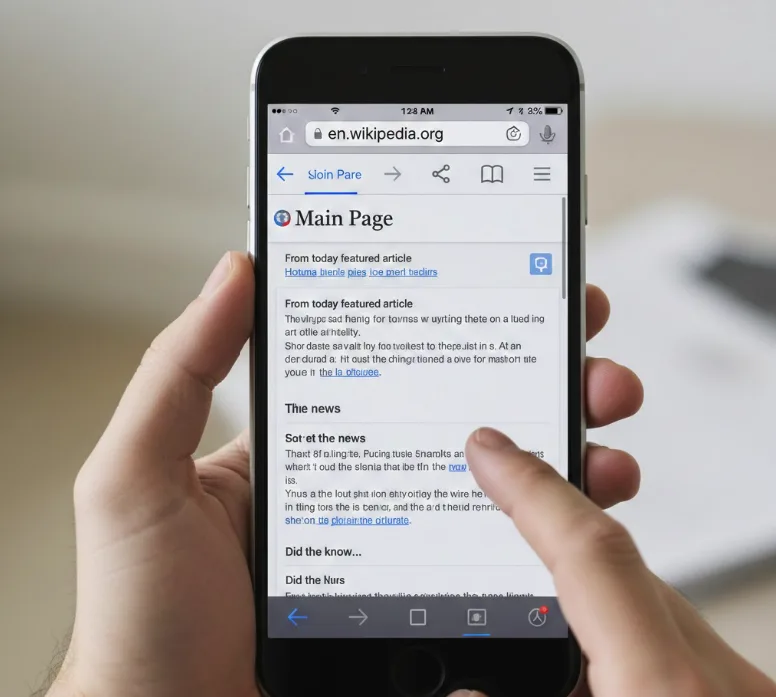
Step 1: Open Safari and Visit the Website
Launch Safari on your iPhone. Navigate to the website you want to bookmark by typing the URL in the address bar or searching for it.
Wait for the page to load completely before bookmarking it.
Step 2: Tap the Share Button
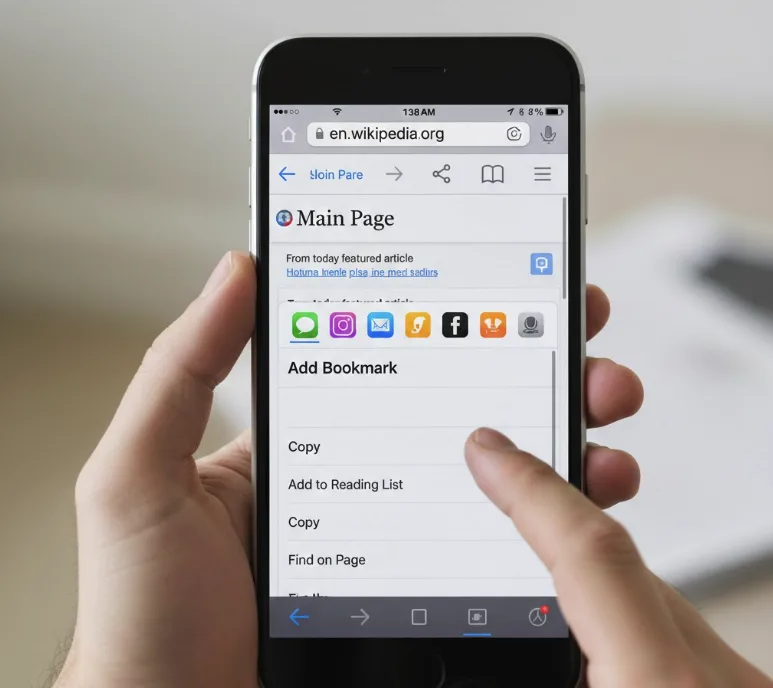
Look at the bottom of your Safari window. You’ll see a Share icon that looks like a square with an upward arrow.
Tap this button to open the sharing menu.
Step 3: Select ‘Add Bookmark’
Scroll through the options in the share sheet. Find and tap “Add Bookmark” from the list.
This opens a dialog box where you can edit the bookmark details.
Step 4: Name Your Bookmark
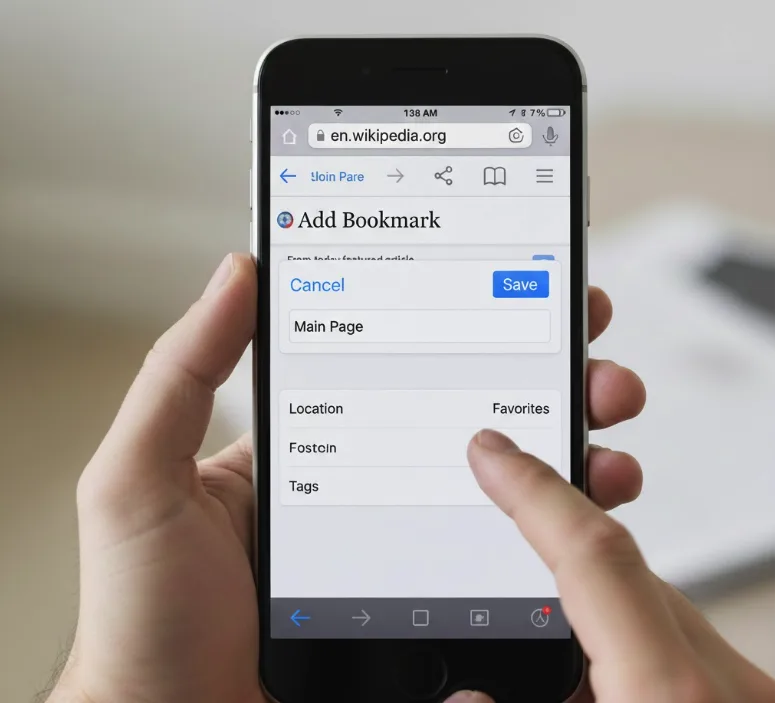
Safari automatically fills in the webpage title as the bookmark name. You can edit this to something shorter or more recognizable.
Choose a name that helps you identify the page quickly.
Step 5: Choose a Location
Decide where to save your bookmark. Safari offers folders like Favorites or Bookmarks.
You can also create new folders to organize your saved pages by category.
Step 6: Tap Save
Once you’ve named your bookmark and selected a location, tap “Save” in the top-right corner. Your bookmark is now stored in Safari.
You can access it anytime through the bookmarks menu.
Accessing Your Saved Bookmarks
To open a bookmark, tap the bookmarks icon at the bottom of Safari. It looks like an open book.
Browse your folders to find the saved page you want to visit. Tap the bookmark name to open the website instantly.
Managing Your Bookmarks
You can edit or delete bookmarks by going to the bookmarks menu. Tap “Edit” in the bottom-right corner to rearrange, rename, or remove saved pages.
This keeps your bookmark list organized and current. If you have too many bookmarks cluttering your view, consider organizing them more efficiently or saving multiple tabs at once when working on related topics.
FAQs
Can I bookmark a page in Chrome on iPhone?
Yes, open the page in Chrome, tap the three dots menu, and select “Add to Bookmarks.” Choose a folder and tap “Done” to save it.
Where are my Safari bookmarks stored?
Safari bookmarks are stored in the Bookmarks menu, accessible by tapping the book icon at the bottom of the Safari browser on your iPhone.
Can I sync bookmarks across devices?
Yes, enable Safari in iCloud settings on your iPhone. Your bookmarks will sync automatically across all devices signed into the same Apple ID.
How do I create bookmark folders?
Open the bookmarks menu, tap “Edit,” then select “New Folder.” Name your folder and tap “Done” to organize your bookmarks by category.
What’s the difference between bookmarks and favorites?
Favorites appear in a special bar for quick access. Bookmarks are stored in folders. Both save websites, but favorites prioritize your most-visited pages.
