


Locking the screen on a Chromebook takes just a few seconds, but it makes a real difference when you step away from your device. Whether you’re at a coffee shop, a library, or a shared workspace, an unlocked screen puts your files, accounts, and personal data at risk.
ChromeOS gives you more than one way to lock your screen. You can use a keyboard shortcut, the system tray, or set it up to lock automatically. Once you know how, it becomes second nature.
How To Lock The Screen On A Chromebook?
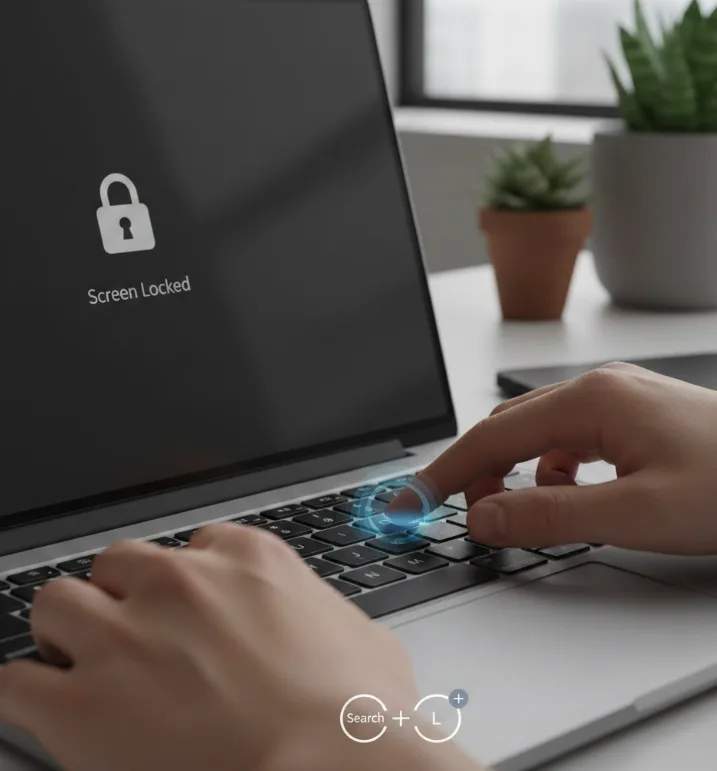
Step 1: Use the Keyboard Shortcut
Press Search + L on your keyboard. This locks the screen right away, no menu required.
If your Chromebook uses the Launcher key instead of Search, press Launcher + L. Both do the same thing.
This is the fastest way to lock the screen on a Chromebook, especially when you need to step away quickly.
Step 2: Lock From the System Tray
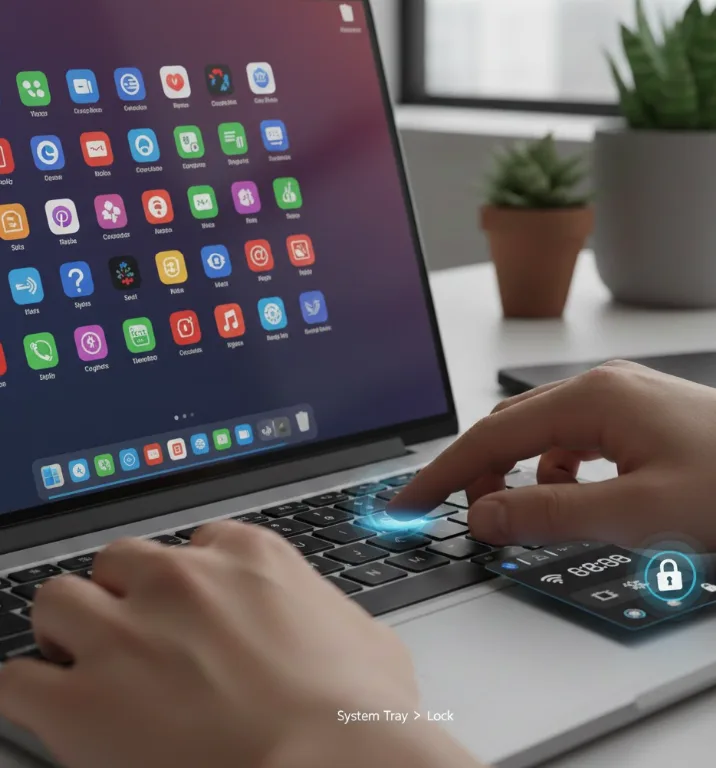
Click the clock in the bottom-right corner of the screen. A panel opens with several icons.
Click the lock icon. Your screen locks immediately.
This method works well if you prefer using a trackpad or mouse over keyboard shortcuts. You can read more about useful Chromebook shortcuts to speed up everyday tasks.
Step 3: Set Up Automatic Lock
Open Settings by clicking the gear icon in the system tray.
Go to Security and Privacy, then select Lock screen and sign-in.
Enter your Google account password when prompted.
Toggle on the option that says Lock when sleeping or lid is closed. This way, your Chromebook locks itself whenever the screen goes dark or you close the lid.
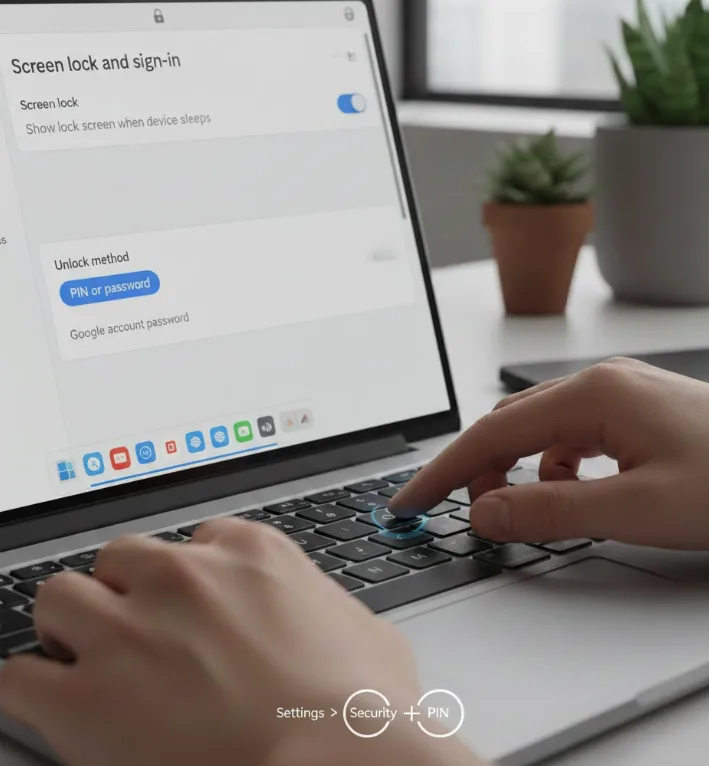
Step 4: Set a PIN or Password for the Lock Screen
In the same Lock screen and sign-in section, you can set a PIN instead of typing your full Google password each time.
Select Set up PIN, enter a 6-digit code, and confirm it.
A PIN makes it faster to unlock while still keeping your device secure.
Step 5: Close the Lid or Press the Power Button
Closing the lid puts your Chromebook to sleep and, if you followed Step 3, locks the screen automatically.
You can also tap the power button once to sleep the device without fully shutting it down.
Both options are useful when you want to lock the screen on a Chromebook without touching the keyboard.
Setting up automatic lock pairs well with a strong password or PIN. If your device stays unlocked by default, anyone nearby can access your files while you’re away. Keeping the screen locked is one of the simplest steps in a broader approach to making your Chromebook more secure.
FAQs
How do I lock the screen on a Chromebook fast?
Press Search + L or Launcher + L on your keyboard. This locks the screen instantly. You can also click the clock in the bottom-right corner and tap the lock icon from the system tray.
Will locking the screen close my open tabs?
No. Locking the screen on a Chromebook only hides your session behind the lock screen. All your open tabs, apps, and documents stay exactly as you left them until you sign back in.
Can I lock the screen on a Chromebook automatically?
Yes. Go to Settings, then Security and Privacy, then Lock screen and sign-in. Turn on the option to lock when sleeping or the lid is closed. Your Chromebook locks itself without any manual action.
What if I forget my PIN for the lock screen?
Enter your full Google account password instead. You can always use your Google credentials to unlock, even if you forget your PIN. After unlocking, reset the PIN in Security and Privacy settings.
Does locking the screen use more battery?
No. Locking the screen does not increase battery usage. The device continues in its normal sleep state. In fact, combining screen lock with sleep mode can help conserve battery when you’re away.
