


The first rule in saving on subscriptions is to have a rule at home: “subscriptions are for fewer services, but each more useful.”
A family can have a Chromebook for school, two phone(s), a smart TV, cloud storage, streaming apps, a password manager, an anti-virus tool, and smart home devices. As each device has its own paid application, the price escalates and security is not uniform.
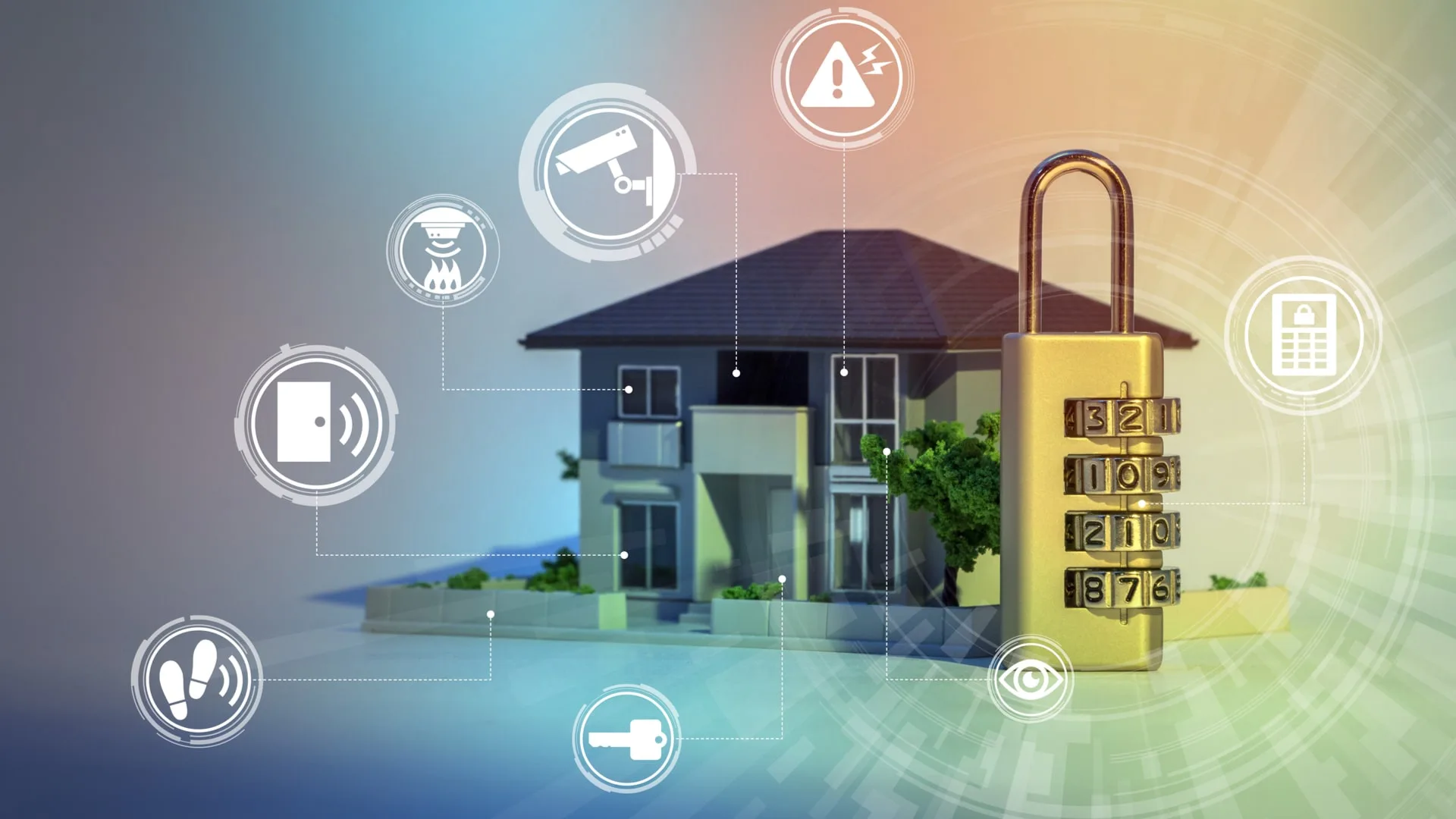
Why saving on subscriptions starts with your home digital ecosystem?
A home digital ecosystem is the complete range of devices, apps, accounts and payments that support a home.
This comprises the obvious services such as Netflix streaming, Spotify music streaming, cloud storage, software suites and many more.
It also covers quieter expenses, like camera storage, router security, parental controls, identity monitoring, VPNs, password managers, and additional app updates.
The problem is rarely one expensive plan. The real drain comes from overlap. One parent pays for cloud storage through a phone plan.
Another pays for a separate photo backup app. A student uses a school Chromebook but also has a paid browser extension. The smart doorbell, smart camera, and security app may each have their own monthly fee.
The quickest savings are generally from consolidation rather than cancellation. An uninformed family that decides to cancel protection instruments could save cash in the short-term but end up with greater dangers in the long-term.
The more effective way is to enter all of the recurring charges, and then compare them to a device or a task and eliminate the duplicates.
Another practical option is to choose shared plans where they make sense, such as a VPN with Family Sharing for privacy across multiple devices, a family cloud storage plan instead of individual backups, or a bundled streaming package that covers multiple profiles.
How to protect your entire home digital ecosystem before cutting costs?
The trees should be protected first and then trimmed. Distinguish between entertainment and a subscription that guards passwords, access to devices, backups or private browsing.
Streaming subscription savings are helpful, but backed up, and if a laptop is lost or a phone malfunctions, then it can cost a lot of money.
Start with four household questions:
- Which accounts hold payment cards, private files, school logins, or work data?
- Which devices leave home most often, such as Chromebooks, phones, and tablets?
- Which services are duplicated across family members?
- Which subscriptions renew yearly without anyone checking them?
A Chromebook household has a special advantage here. ChromeOS already centers many tasks around browser profiles, Google accounts, Android apps, and cloud storage.
That makes it easier to review what each person uses. It also means one weak account password or unsafe extension can affect more than one device.
For a more detailed ChromeOS safety checklist, this Chromebook security guide is a useful internal reference for account, browser, and device protection.
| Area to review | Common hidden cost | Better household approach |
| Streaming | Three similar entertainment plans | Rotate services monthly |
| Cloud storage | Separate photo and file backups | Use one shared storage plan |
| Security tools | Different apps on every device | Choose one family-ready setup |
Saving on subscriptions with family plans
Family subscription plans work best when the service is used by several people every week. Music, cloud storage, password managers, parental controls, and VPNs often fit this pattern. The value comes from shared coverage, easier billing, and fewer forgotten renewals.
A family plan should pass three checks before you keep it:
- It covers the devices your household actually uses.
- It allows separate profiles, logins, or permissions.
- It has clear cancellation and renewal terms.
Where digital subscription management finds waste?
Digital subscription management is a monthly habit, not a budgeting app alone. The cleanest method is to audit by function. Instead of asking, “Do we still use this app?” ask, “What job does this subscription perform?”

A small home audit may look like this:
| Subscription type | Keep if it does this | Cancel or replace if |
| Password manager | Stores unique passwords for all adults | Only one person uses it |
| VPN | Covers phones, laptops, tablets, and Chromebooks | It is installed but rarely turned on |
| Cloud storage | Backs up family photos and documents | It duplicates another storage plan |
| Parental controls | Matches age and device needs | Kids have outgrown the restrictions |
| Streaming | Used several times per week | It sits idle between releases |
One useful test is the “last 30 days” rule. If nobody used a service in the past month, pause it or schedule a cancellation before renewal.
The exception is protection. Password, backup, and home cybersecurity subscriptions may work quietly, so judge them by coverage and risk reduction rather than daily clicks.
How smart home security subscriptions affect the home digital ecosystem?
Smart home security subscriptions can be worth paying for when they store footage, support emergency alerts, or protect devices through the router. They become wasteful when every camera, doorbell, and sensor has a separate plan with similar features.
A practical example: a household may pay for a video doorbell plan, two indoor camera plans, a router security add-on, and cloud backup from a phone provider. Each plan sounds small. Together, they can cost more than a single well-matched home cybersecurity setup.
Before renewing smart home security subscriptions, check:
- Whether local storage is enough for some devices.
- How long video history is actually needed.
- Whether alerts are useful or mostly ignored.
- Which family member controls the admin account.
- Whether old devices still receive updates.
The admin account deserves extra care. If one shared email controls cameras, smart locks, cloud files, and payment details, protect that account with a strong password and two-factor authentication.
CISA explains that multifactor authentication adds a second verification layer when someone tries to access an account. A cheaper home setup is still weak if one account can unlock everything.
Protect your home digital ecosystem on Chromebooks, phones, and smart TVs
A home protection plan should match how people behave, not how a product page describes “coverage.” Chromebooks may move between school, cafes, libraries, and home Wi-Fi. Phones connect to public networks during errands.
Smart TVs stay at home but connect to streaming accounts and payment details. Each device has a different risk pattern.
Here is a practical setup order:
- Secure the main Google or Apple account first.
- Add two-factor authentication to payment, email, and cloud accounts.
- Install a password manager before changing passwords.
- Review browser extensions on each Chromebook.
- Use a shared VPN plan where several family members need private browsing.
- Remove unused streaming apps from TVs and tablets.
- Set one calendar reminder for every annual renewal.
This order prevents a common mistake: canceling tools first and organizing later. When a household cleans accounts first, it can cut costs without losing safety.
Saving on software subscription costs without weakening security
Software subscription costs often hide in app stores, browser extensions, and annual renewals. A family may pay for PDF tools, note apps, photo editors, cloud drives, school apps, and device cleaners.
Some are useful. Others duplicate features already included in ChromeOS, Google Workspace, Microsoft 365, or the operating system.
A good rule: pay for software when it saves time every week, protects valuable data, or supports school or work tasks. Cancel it when it exists because of one old project.
For example, a parent may pay for a photo editing app after making invitations two years ago. A student may pay for extra storage because downloads were never cleaned.
Another family member may pay for a browser security extension that overlaps with a VPN, password manager, or built-in browser protection. These are easy savings because the household loses little value.
Protect more of your home with fewer subscriptions
Subscription savings isn’t about eliminating all paid services. It’s all about the manageability of the home digital ecosystem. Begin with accounts and devices, then look at payments; then remove duplicate services for shared plans when they are appropriate.
A robust setup typically includes fewer renewals, better coverage, better ownership, and coverage across Chromebooks, phones, tablets, smart TVs and smart home devices.
Subscription savings are made safer and more sustainable when the family is aware of the tools that protect it against passwords, browsing, storage and devices.
