


Using Telegram on a Chromebook is easy. Choosing the right version is the part that deserves a little thought.
ChromeOS gives you several routes: open Telegram in Chrome, install the Android app on a supported Chromebook, or run the Linux desktop client if you already use the Linux environment. All three can reach the same Telegram account, but they do not behave like the same local app.
Notifications, downloads, cache, permissions and updates depend on which route you choose.
For most Chromebook owners, the web version is the best place to start. Android makes sense if you prefer the mobile app interface or need something that works better there. Linux is mainly worth considering if it is already part of your Chromebook workflow.
Start With the Web Version
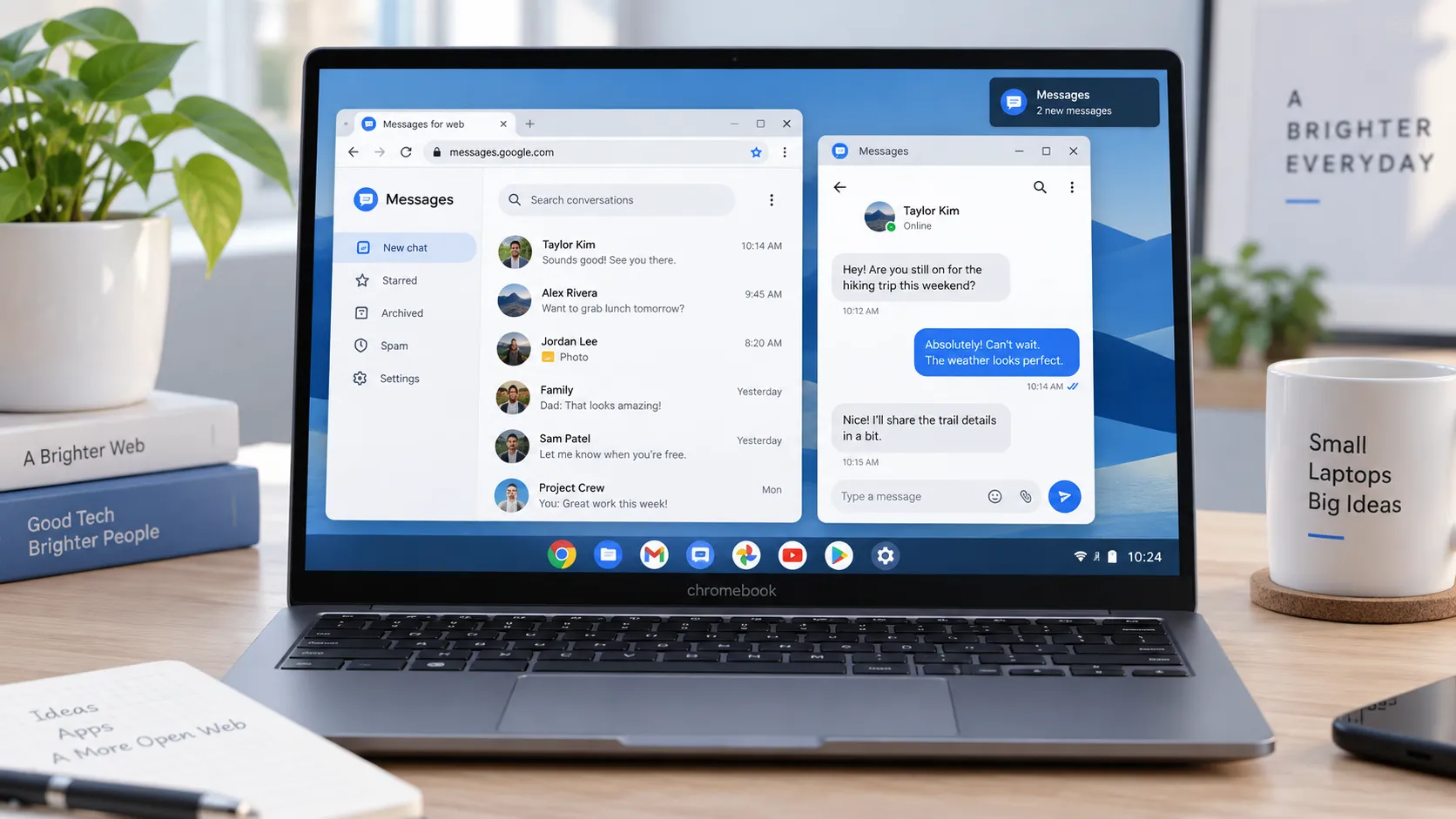
Telegram maintains official browser clients, so you do not need a special “Chromebook installer” to start messaging. Open the service in Chrome, sign in, and you get a desktop-friendly interface without adding another software layer.
Telegram currently lists both WebA and WebK as official web clients alongside its Android, iOS and desktop apps.
That simplicity is the web version’s biggest advantage. There is no Android environment to troubleshoot, no Linux package to maintain and no conventional desktop installer to update.
It is also the practical route for ChromeOS Flex. Android apps and Google Play are not supported on ChromeOS Flex devices.
The only thing worth slowing down for is the sign-in route. Search results can mix official pages with tutorials, mirrors and third-party download pages. If you search in Traditional Chinese, verify the destination rather than assuming a result is official because its wording looks familiar.
A localized Telegram 官網入口 can help identify the correct route before you sign in, but there is normally no reason to download a file advertised as a special “ChromeOS version” when official web clients already exist.
WebA and WebK Are Both Official
WebA and WebK are two official browser clients for the same service. They are not unofficial APKs, and neither should be confused with a separate “lite” edition. Telegram lists both on its official Apps page.
You do not need to know the project history behind them to choose one. Open both, compare the current interface and keep the one that fits the way you work.
That is safer than relying on an old comparison article because web-client features can change without a Chromebook-specific reinstall.
You Can Make the Web Version Feel More Like an App
A browser service does not have to live in a crowded tab bar.
ChromeOS can open supported web apps in their own windows and place them in the Launcher. That gives you a cleaner workspace and makes switching between Telegram and other Chromebook apps easier.
The window may look like a conventional application, but the underlying model has not changed. It is still using Chrome’s web permissions, browser storage and site data.
That distinction becomes useful later when notifications stop working or you are trying to work out where a downloaded file went.
When the Android App Makes More Sense?
Many Chromebooks can run Android apps through Google Play, including Telegram’s official Android client. Play Store support is available only on supported Chromebook models and may also be restricted on work or school devices.
The Android version is worth trying if you already prefer the mobile interface, use touch input frequently or have a convertible Chromebook that spends a lot of time in tablet mode.
It is not automatically the “better” version simply because it is installed from an app store.
If Chrome already gives you everything you need, adding the Android version creates another local environment with its own cache, permissions and settings.
One Account Does Not Mean One Local Environment
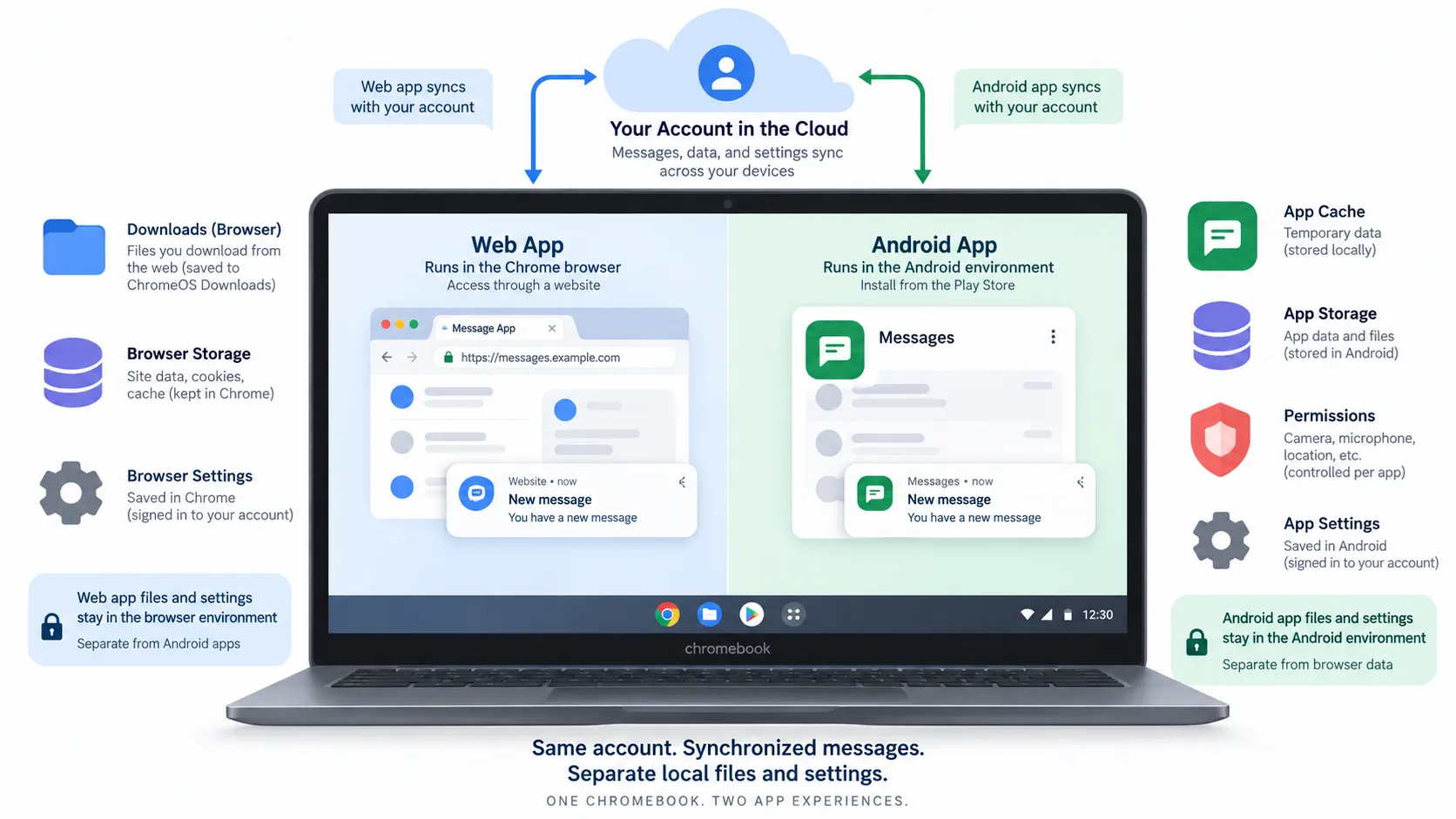
Open Telegram Web and the Android app side by side and they can look almost identical. Your account and cloud-based conversations make the two clients feel connected.
Locally, Chrome and Android remain separate.
A file downloaded through the browser follows Chrome’s download behavior. The Android app keeps its own app data and cache. Notification permissions are also handled through different layers.
Clearing browser data does not mean you have cleared the Android app’s cache. A setting changed in one client should not be treated as proof that the other client changed too.
account sync and local app state are not the same thing.
Notifications: Check the Client First
If Telegram Web stops notifying you, start with Chrome.
Check whether the site is allowed to send notifications, then look at ChromeOS notification controls and finally the settings inside Telegram itself.
If you are using the Android app, troubleshoot the Android app instead. It has a different permission path.
The common mistake is changing both environments at once. That makes it harder to tell which setting fixed the problem.
First identify what is actually running: a website in Chrome or an Android application.
Downloads Can Land in Different Places
File handling is another area where the two versions can look similar while behaving differently underneath.
Download a PDF from Telegram Web and Chrome normally handles the save operation through its usual download workflow.
Open the same attachment in the Android app and the Android environment is now involved.
Seeing the same document in both clients does not mean the same local file exists twice.
A message attachment available from the cloud, a cached copy and a file you deliberately saved to local storage are three different things. That distinction matters when you are looking for a document in the Files app or trying to reclaim space.
An App-Like Window Is Still a Web App
ChromeOS deliberately makes platform differences less visible to users. That is convenient, but it can also cause confusion.
A Telegram web window may sit in the Launcher and open separately from Chrome’s main window, yet its storage and permissions are still browser-based.
The interface looks more native. The execution model has not magically become a traditional desktop program.
What About Telegram Desktop for Linux?
Telegram also provides an official desktop client for Linux.
Chromebooks that support the Linux development environment can run many Linux desktop applications, so technically minded users have another route available.
There is little reason to start there if your only goal is messaging.
Linux creates another environment to maintain, another update path and another place for local files and settings. It makes more sense if you already keep Linux enabled for development or for desktop applications that are not available as web or Android software.
If that describes your setup, the Linux client is worth comparing with the web version. Just treat it as its own local application rather than a more “complete” version of the browser client.
Do Not Enable Developer Mode Just for Telegram
Developer Mode is not required to use Telegram Web, a supported Android app or ChromeOS’s normal Linux environment.
Moving into or out of Developer Mode wipes local device data. That is far too much disruption just to get a messaging client running.
If a guide tells you to turn on Developer Mode, disable normal verification or sideload an unknown APK simply to use Telegram, stop and check the ordinary routes first.
For most users, the official web client or the Play Store version already solves the problem.
Managed Chromebooks May Give You Fewer Options
School and company Chromebooks can look like consumer models while following very different software policies.
An administrator may block Google Play, restrict Linux, control site permissions or limit which apps can be installed. Work and school Chromebook users may not be able to add Google Play or install Android apps.
If an option is missing, the Chromebook may not be malfunctioning. It may simply be following management policy.
On a managed machine, the web client is often the least complicated option, provided the site itself is allowed.
Which Version Should You Use?
If you want the short answer, start with the web client.
| Your Chromebook setup | Best place to start |
| You want quick access with no extra app environment | WebA or WebK |
| You use ChromeOS Flex | WebA or WebK |
| Your Chromebook supports Google Play and you prefer mobile-style apps | Android |
| You use a school or work Chromebook | Check administrator policy; web is often simplest |
| Linux is already part of your workflow | Linux Desktop is worth testing |
| You only need everyday messaging and files | Web is usually enough |
You can always change later. There is little value in installing three versions on day one simply because all three are technically available.
Try a Five-Minute Comparison
If your Chromebook supports both web and Android apps, compare them with your own workflow instead of choosing from a feature checklist.
Open the web client and send a few messages. Enable notifications. Download an image and a PDF, then note where ChromeOS puts them.
Next, repeat the same tasks in the Android app.
Pay attention to the mundane differences:
- Which window is easier to manage?
- Which notification behavior makes more sense?
- Where do downloaded files appear?
- Which version feels less intrusive alongside your normal Chrome tabs?
- Do you actually gain anything from keeping both installed?
Those answers matter more than whether one client has a longer feature list.
The Bottom Line
Chromebooks blur the old line between websites and installed apps. That is one of ChromeOS’s strengths, but it can make troubleshooting confusing when two clients show the same account while keeping different local data.
Start with the simplest supported route.
For many Chromebook owners, that will be Telegram Web. Use Android when it gives you a clear advantage. Consider Linux when Linux already belongs in your workflow.
Whichever version you choose, keep one distinction in mind: your Telegram account can stay synchronized while downloads, cache, permissions and notifications remain specific to the client running on that Chromebook.
