


Mobile and tablet users often face this issue: after switching to the desktop version of Amazon, they cannot return to the mobile version.
Navigating the desktop version on a phone or tablet becomes frustrating, as it proves cumbersome and complicated.
Why Does This Happen?
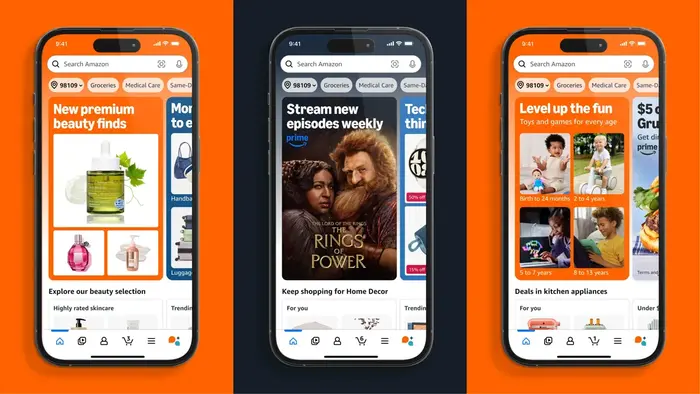
It’s not a bug or issue; your browser functions as it should.
When you view Amazon in its desktop version on your phone, the browser saves that preference.
Many users return, expecting the mobile site, but the desktop version still appears.
Luckily, Google Chrome and Mozilla Firefox let you easily switch back to the mobile version of websites.
Reversing this on Apple Safari for iPads and iPhones requires a more complicated process, which we’ll explain later in this post.
Switch Amazon to Mobile View on Google Chrome
If you want to switch Amazon from the desktop version to the mobile version on your phone, here’s how to do it:
- Open the Google Chrome browser on your device.
- Go to Amazon.com, and you’ll see the desktop version.
- Tap the three dots in the upper-right corner of the Chrome window.
- In the menu, find the option labeled “Desktop site.” If selected, tap it to deselect and switch to the mobile version.
That’s all! The Amazon site will now display the mobile version. You can use this process anytime to toggle between desktop and mobile views in Google Chrome.
How to Switch to Amazon’s Mobile Version on Mozilla Firefox?
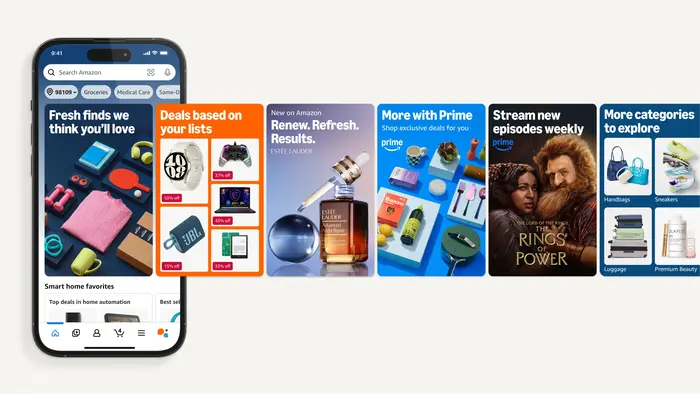
If you want to access the mobile version of Amazon on Mozilla Firefox, the process is straightforward, similar to Google Chrome.
Here’s how to do it:
- Launch the Firefox app on your mobile device.
- Go to Amazon.com, and the desktop version will appear first.
- Tap the three vertical dots located in the top-right corner of the browser.
- In the menu that appears, locate the “Desktop site” option. If it is selected, the desktop version is active. Tap it to deselect and switch to the mobile version.
Once you follow these steps, Amazon will load its mobile-friendly version.
If you wish to return to the desktop view later, repeat the process and enable the desktop site again.
Reverting to the Mobile Version of Amazon on Apple Safari
When browsing with Safari, requesting the desktop version of a website applies to the current session.
The next time you visit the site, Safari will automatically switch back to the mobile version.
However, this setting may sometimes fail, causing the desktop version to persist.
To switch back to Amazon’s mobile site on Safari, follow these steps:
- Open the Settings app on your device.
- Scroll down and select Safari.
- Tap on “Advanced” further down the menu.
- Choose “Website Data” on the next page.
- In the upper-right corner, select “Edit.”
- Find Amazon.com in the list, swipe left on it, and tap “Delete.”
- Finally, tap “Done” in the upper-right corner to save the changes.
Once completed, revisiting Amazon through Safari will show the mobile site.
If you want to switch to the desktop version of any site, press and hold the refresh button in Safari; after having it for a moment, a menu will appear with the option to “Request Desktop Site,” allowing you to view the desktop version.
