


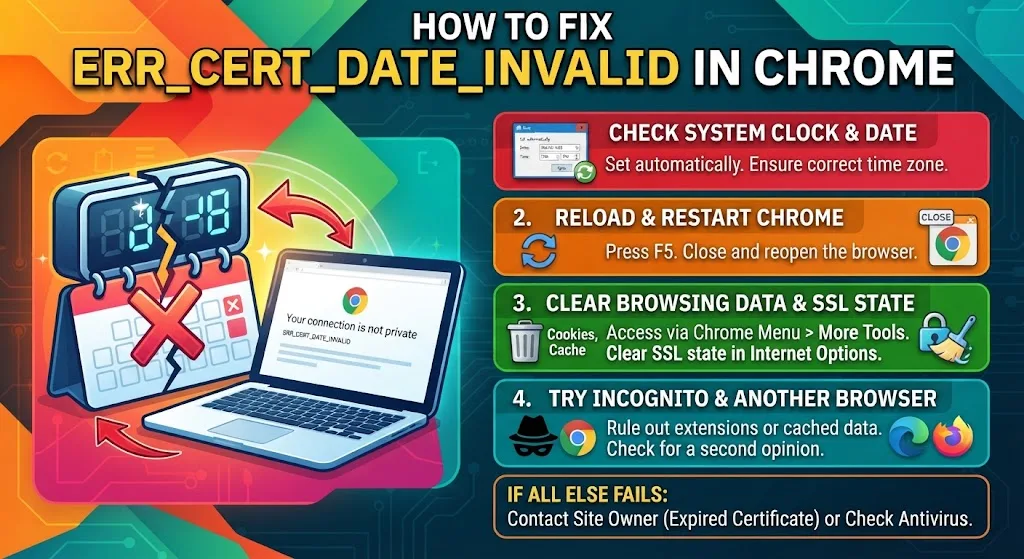
Chrome shows err_cert_date_invalid when the dates on a site’s certificate and the clock on your device disagree. The page stops loading and a warning screen takes over.
Sometimes the certificate expired last week. Sometimes your laptop woke up thinking it is 2019. Both are fixable, and neither one proves the site is infected.
What Does err_cert_date_invalid Mean in Chrome?
Every certificate carries two dates: a start and an end. Chrome checks your system clock against that window before it opens a secure connection.
If today’s date falls outside the window, the connection stops there. Chrome will not hand your data to a certificate it cannot vouch for.
The full code reads net::err_cert_date_invalid, and it sits under the wider “Your connection is not private” screen. Clicking the code text expands the panel and shows both the current date and the expiry date, which is usually enough to tell you where the fault sits.
Why err_cert_date_invalid Shows Up
The cause is almost always one of a short list. A wrong system clock or time zone. A certificate the owner forgot to renew. Stale certificate data cached on your machine.
Beyond those, faulty DNS values, antivirus software scanning HTTPS traffic, or an extension sitting in the middle of the connection can all trigger it.
Here is the quickest way to narrow it down. If the warning appears on one site only, the certificate on that server has expired. If it appears across many unrelated sites at once, the problem is on your device.
How to Fix err_cert_date_invalid in Chrome
Work through these in order and stop at whichever one clears the warning.
Check the clock and calendar
Open your date and time settings and turn on automatic sync. On Windows that lives under Clock and Region, on macOS under system settings, on a Chromebook under the time panel.
A clock that drifted by a day is enough to break certificate validation everywhere.
Reload, then restart Chrome
Press F5 first. Then close Chrome fully and reopen it. A stalled load can produce the same warning as a real certificate problem, much like pages that hang before finishing.
Clear browsing data and the SSL state
Go to the Chrome menu, More tools, then Clear browsing data. Tick cached images and cookies.
Next, empty the on-device certificate store: Start menu, Internet Options, Content tab, Clear SSL State. Cached certificate copies survive a renewal on the server side and keep showing you the old expiry date.
Test in Incognito and in a second browser
Incognito disables extensions and ignores cached files, so a page that loads there points at one of those two. Open the same address in Edge or Firefox for a second opinion before you blame Chrome.
Swap your DNS values
Head to Control Panel, Network and Internet, Network and Sharing Center, then Change adapter settings. Open your active connection, select Internet Protocol Version 4, and enter Google’s public DNS.
Write down the old values first. Broken resolution causes plenty of other faults too, including Chrome returning no data at all.
Check antivirus and extensions
Security suites that inspect encrypted traffic insert their own certificate into the chain, and that certificate can carry dates Chrome rejects. Turn off HTTPS scanning for a moment and reload.
Then disable extensions one at a time. The same test resolves memory access violations on Chromebooks, since add-ons break connections in similar ways.
Related Certificate Errors You Might See Instead
Chrome uses several codes for certificate faults, and the wording tells you what failed. net::err_cert_authority_invalid means the issuer is not trusted, and the fixes for that untrusted authority warning differ from the date-based one.
You may also meet net::err_cert_common_name_invalid, net::err_cert_weak_signature_algorithm, net::err_certificate_transparency_required or net::err_ssl_protocol_error. A protocol mismatch instead produces err_ssl_version_interference, which needs a different approach again.
Older pages still trip alarms for retired SHA-1 hashing or withdrawn Symantec certificates. Both show up under the Chrome menu, More tools, Developer tools, Security panel.
Fixing err_cert_date_invalid as a Website Owner
Renew the certificate. That is the whole job in most cases, and no amount of visitor troubleshooting substitutes for it.
Check that intermediate certificates installed correctly, then run the domain through an online SSL checker to confirm the dates and chain. Let’s Encrypt with automated renewal removes the human step that causes most expirations.
Broken certificates cost traffic in the same way that a server-side 500 fault does, so treat it as urgent rather than cosmetic.
Is err_cert_date_invalid Dangerous?
It ranks among the milder faults you can hit. Usually it reports that the TLS handshake between your device and the server failed to complete cleanly.
You can click through the warning if you must, and the page is unlikely to be hostile. Still, do not enter passwords or card details on a site behind that screen.
If nothing works on a second device and a second connection, the fault sits with the server. At that point the cure belongs to the owner, not to you. Malformed requests behave the same way, which is why 400 Bad Request errors sometimes need the host to step in.
FAQs
Does err_cert_date_invalid mean the site has a virus?
No. The error reports a date mismatch between the certificate and your clock, nothing more. An expired certificate or a host oversight explains most cases, not malware on the page.
Should I ignore the err_cert_date_invalid warning?
Not by default. Bypass it only on sites you already trust and never while entering passwords or payment details. Some owners genuinely do host harmful code behind an outdated certificate.
Why does err_cert_date_invalid appear on every site?
Your system clock is almost certainly wrong. Turn on automatic date and time sync, restart the browser, and the error clears across all sites at once.
How do I fix err_cert_date_invalid on a Chromebook?
Open the time panel and enable automatic time, then clear browsing data through the Chrome menu. Test the page in Incognito to rule out an extension before trying anything further.
Nothing clears err_cert_date_invalid. What now?
Test the site on another device using a different network. If it still fails, the certificate on the server has expired and only the site owner can renew it.
