


AirPods work with any Bluetooth-enabled device, including Chromebooks. While these earbuds are designed for Apple products, you can connect them to your Chromebook and enjoy their audio quality without any special apps or software.
When you use AirPods with a Chromebook, some Apple-specific features are unavailable. Siri, automatic ear detection, and seamless device switching only work within the Apple ecosystem. You also lose access to gesture controls and battery notifications. However, the core audio experience remains intact, and if your AirPods support active noise cancellation, that feature works too.
This guide shows you how to pair AirPods to Chromebook in three simple steps. The process applies to all AirPods models and all Chromebook devices running ChromeOS.
How To Pair AirPods To Chromebook?
Step 1: Put Your AirPods in Pairing Mode
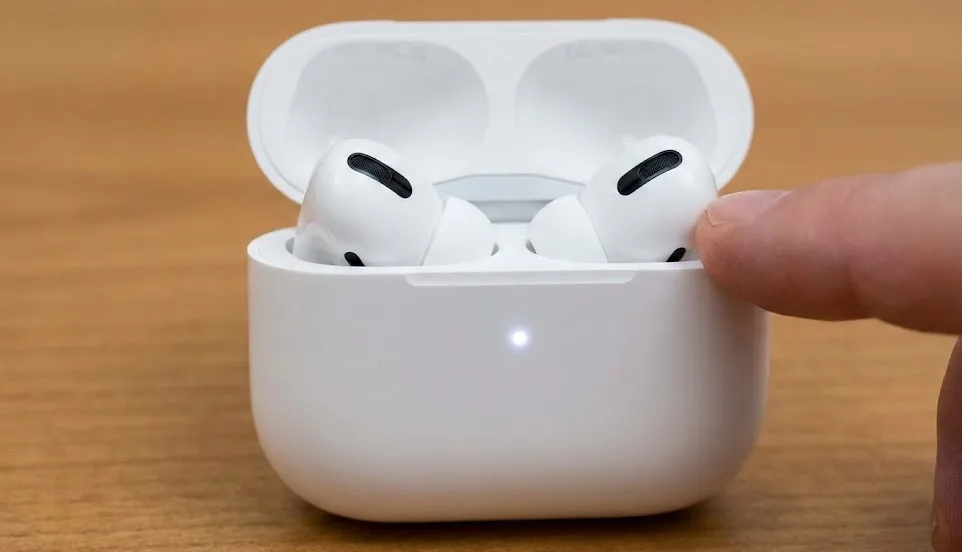
Open your AirPods case with both earbuds inside.
Locate the small button on the back of the case. Press and hold this button for about five seconds.
Watch for the LED light inside the case. When it starts flashing white, your AirPods are ready to pair.
For AirPods Max owners, press and hold the noise control button on the right earcup until the status light flashes white.
Step 2: Open Bluetooth Settings on Your Chromebook
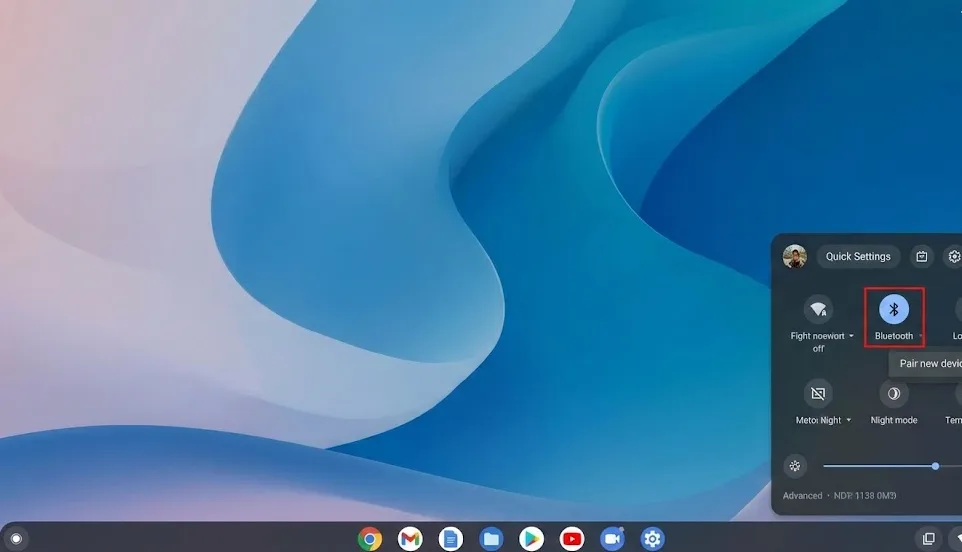
Place your AirPods near your Chromebook. Click the time display in the bottom-right corner of your screen to open Quick Settings.
Find the Bluetooth icon in the panel. If Bluetooth is off, click it to turn on Bluetooth on your Chromebook.
Click the plus symbol next to Bluetooth, then select “Pair new device.” Your Chromebook will scan for available devices.
Step 3: Select Your AirPods and Connect
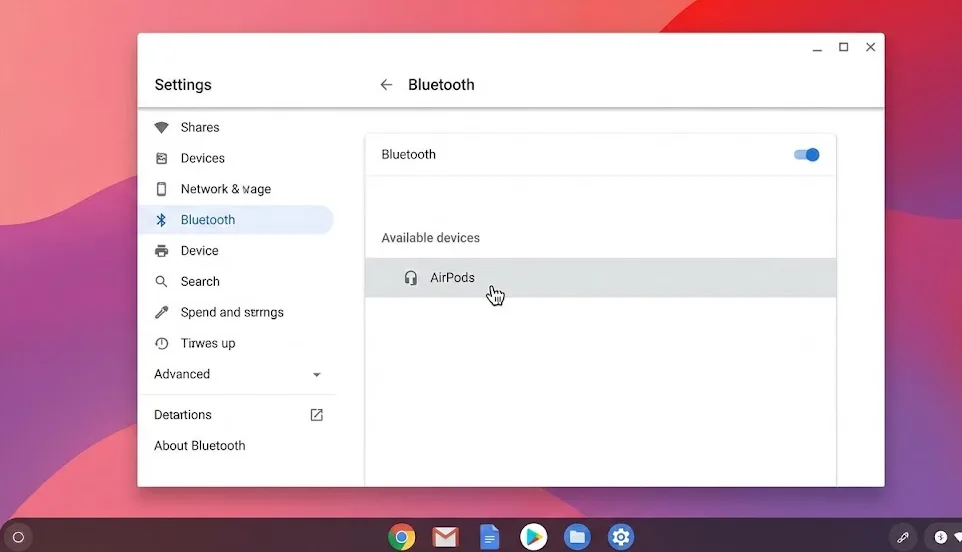
Your AirPods will appear in the list of available devices within a few seconds. The name typically shows as “AirPods” or your name followed by “AirPods.”
Click your AirPods to start the pairing process. A notification confirms the connection once complete.
If your AirPods don’t appear, check that the LED is still flashing white. You may need to close the case, wait a few seconds, then repeat the pairing process.
After pairing, your Chromebook remembers your AirPods. You can reconnect them anytime from the Bluetooth settings without repeating these steps. Simply open the case near your Chromebook and select them from the list of previously connected devices.
If you experience connection problems, you can troubleshoot common issues or try reconnecting earbuds to your Chromebook using standard Bluetooth pairing.
FAQs
How do I disconnect AirPods from a Chromebook?
Open Bluetooth settings, find your AirPods in the connected devices list, and click “Disconnect.” Select “Forget this device” to remove them completely.
Can I use AirPods for video calls on my Chromebook?
Yes. AirPods work as both speakers and microphone for video calls. Select them as your audio input and output in your calling app settings.
Why won’t my AirPods connect to my Chromebook?
Check that Bluetooth is enabled and your AirPods are in pairing mode with a white flashing light. Move both devices closer together and try again.
Do AirPods Pro features work on Chromebook?
Active noise cancellation and transparency mode work on Chromebook. Gesture controls, Siri, and automatic ear detection require an Apple device.
Will my AirPods automatically reconnect to my Chromebook?
Once paired, your Chromebook remembers your AirPods. Open the case nearby and select them from Bluetooth settings to reconnect without re-pairing.
